
- Creating and Publishing a Form
- Instant Forms
- Conversational Form
- Create Multi Step Forms In WordPress
- Using Calculations in SureForms: A Step-by-Step Guide
- Calculation Formula Guide
- SureForms Login Block – Step-by-Step Guide
- SureForms Registration Block – Step-by-Step Guide
- SureForms – PDF Generation Feature
- GDPR Compliant Forms
- Adjust Form Notification Emails
- Form Confirmation
- Entries Management Feature Guide
- How to Add Query Parameters to Form Redirects
- How to Fetch Query Parameters from URL
- Set the “From Email” in SureForms
- Setting Up “Reply-To” Email Using Form Input Tags – SureForms
- Restrict Form Entries in SureForms
- Form Scheduling in SureForms
- Conditional Confirmations in SureForms
- SureForms Integration with ActiveCampaign
- SureForms Integration with AgileCRM
- SureForms Integration with Airtable
- SureForms Integration with LatePoint
- SureForms Integration with FluentCRM
- Connect SureForms To Zapier
- Automate WordPress Forms with the Custom App Builder
- SureForms Integration with Telegram
- SureForms Integration with Breeze
- SureForms Integration with Brevo
- Unable to Upload SureForms ZIP: File Unzipped On Download
- Browser Support for SureForms
- Not Getting Update Notifications
- How To Rollback to Previous SureForms Versions
- Publishing Failed: Invalid JSON Response
- Troubleshooting Email Sending In SureForms
- SureForm Submissions Marked as Spam – How to Fix
- API Request Failed – Nonce Verification Error
- Fixing the “Destination folder already exists” Error When Installing SureForms
- How to Set Up SureForms with Caching Plugins
- srfm_enable_redirect_activation
- sureforms_plugin_action_links
- srfm_quick_sidebar_allowed_blocks
- srfm_integrated_plugins
- srfm_suretriggers_integration_data_filter
- srfm_form_submit_response
- srfm_enable_gutenberg_post_types
- srfm_languages_directory
- srfm_form_template
- srfm_disable_nps_survey
How to Create a Payment Form in SureForms
In this guide, we’ll walk through the steps to create a payment form using SureForms. This includes adding a payment block, setting payment types, configuring billing intervals, and other important settings.
Step 1: Connect Your Payment Gateway
Before your form can start collecting payments, make sure you’ve connected your Stripe account or PayPal account with SureForms.
See the guide:
Step 2: Create a New Form
- Go to your WordPress Dashboard.
- Navigate to SureForms → New Form.
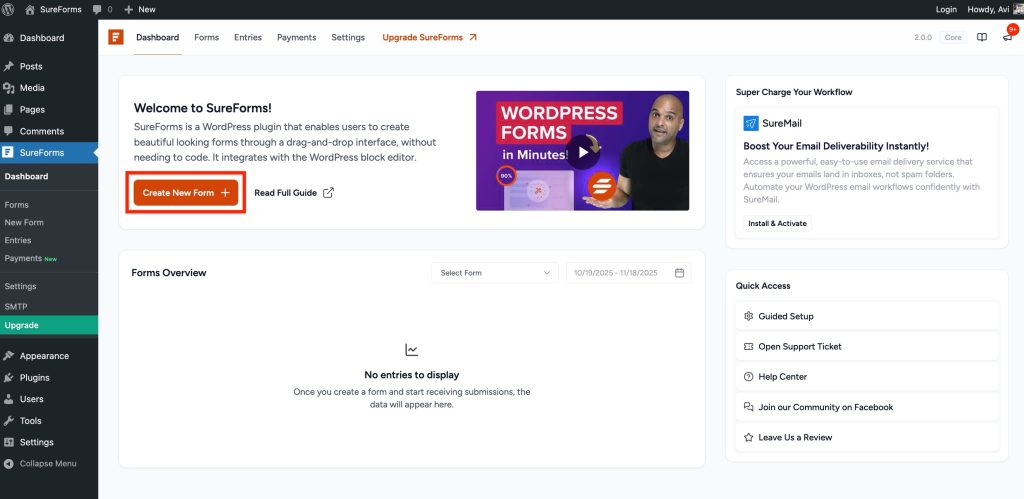
- You can create a form via the AI Form Generator
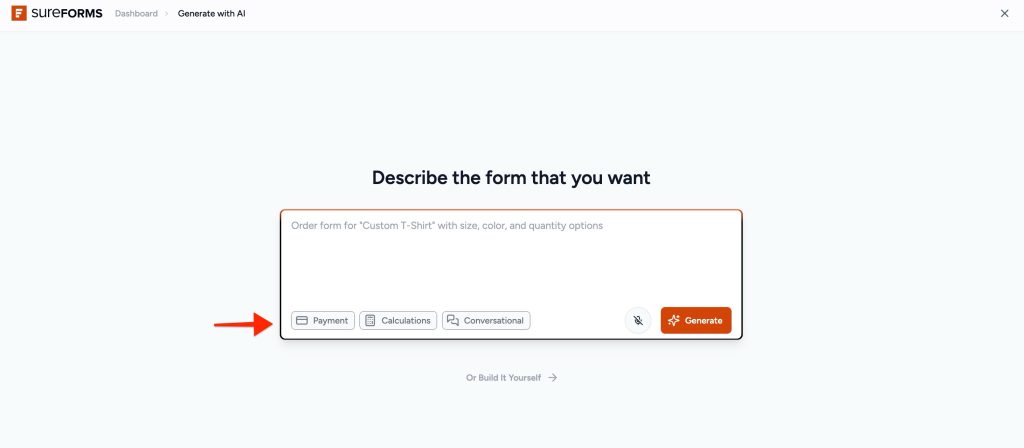
- Or design the form from scratch
Step 3: Design Your Form
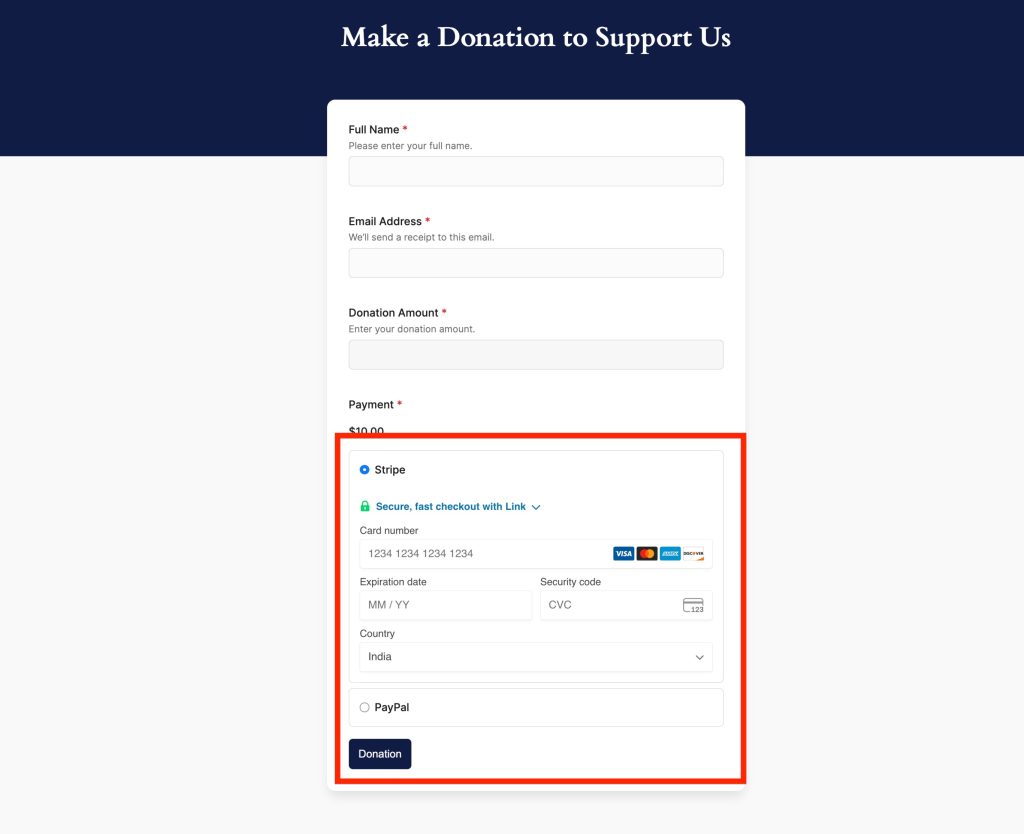
Please add the required fields to the form so we can design the “Make a Donation” form.
- Add a Text field for the Name
- Add an Email field
- Add a Number field for the Donation Amount
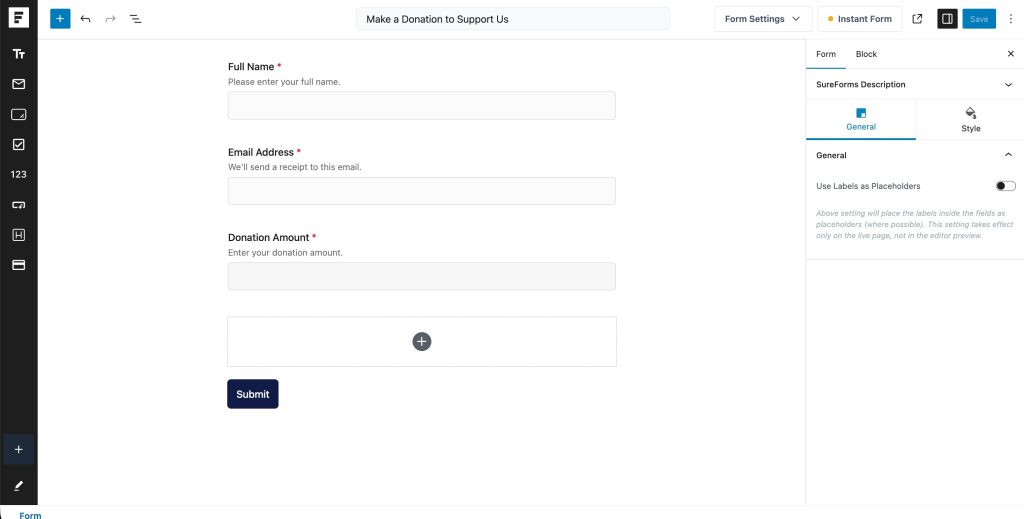
Once the basic fields are added, you can now include the Payment Block.
Step 4: Add a Payment Block
- Click on the + Add Block button in the form builder.
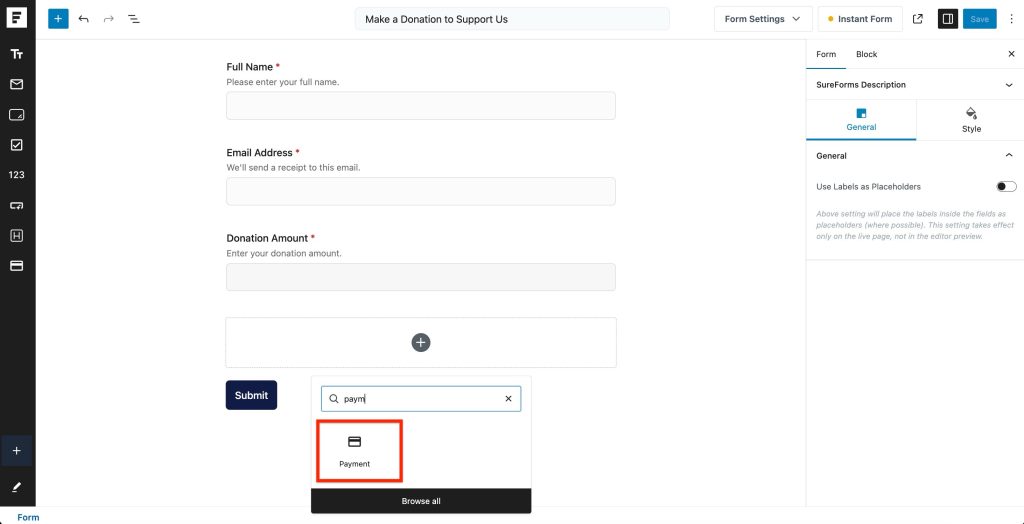
- Select Payment Block from the list of available blocks.
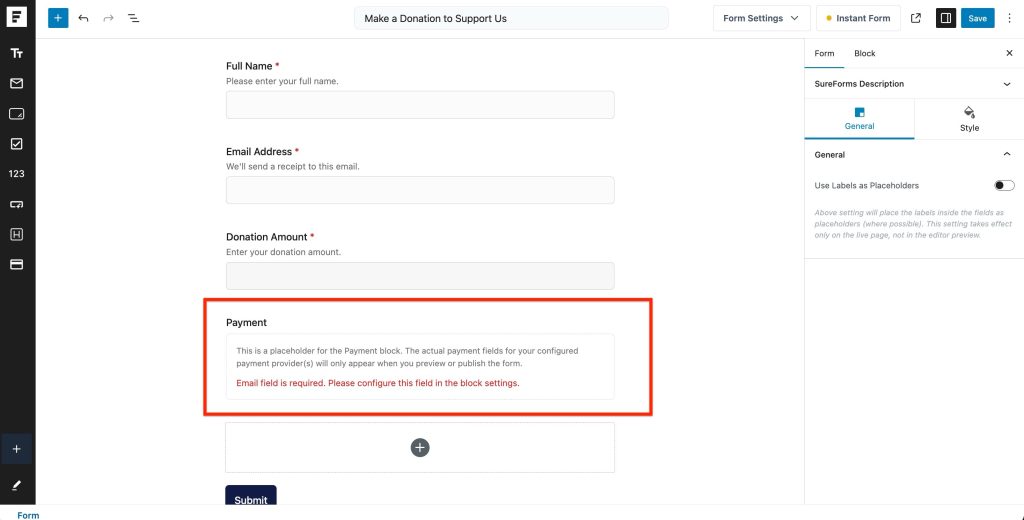
The payment block allows you to configure how you want to collect payments through your form.
Step 5: Configure Payment Block Settings
Let’s go through each setting available in the Payment Block.
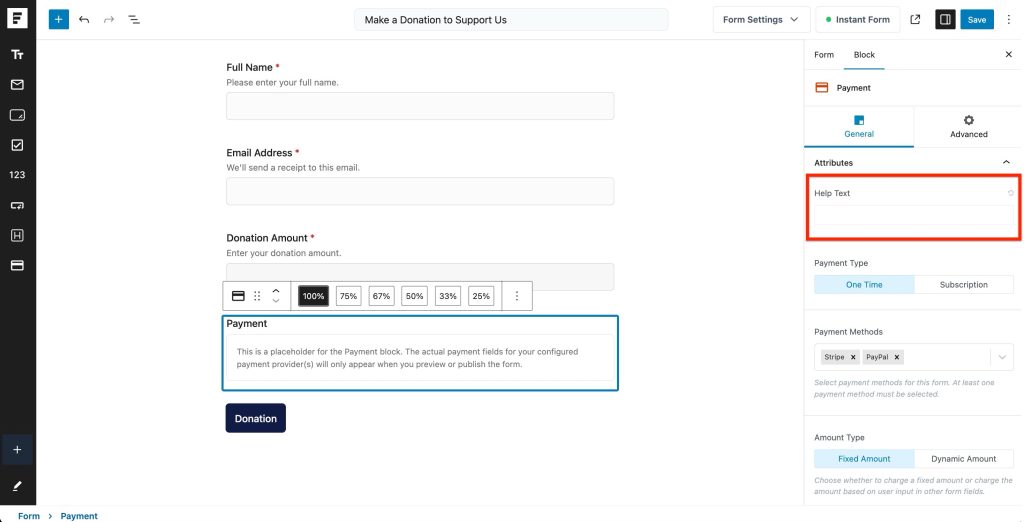
1. Help Text
You can add a short description or instructions for users.
Example: “Fill out the details below to complete your payment.”
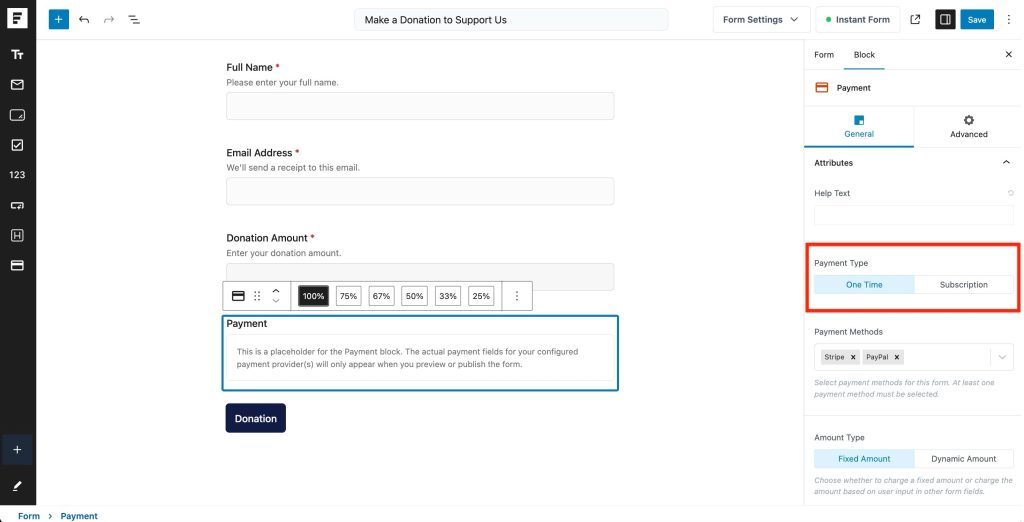
2. Payment Type
Choose the type of payment you want to collect:
- One-Time Payment – Charge the customer a single amount.
- Subscription Payment – Set up recurring payments.
If you select Subscription Payment, you’ll get additional settings.
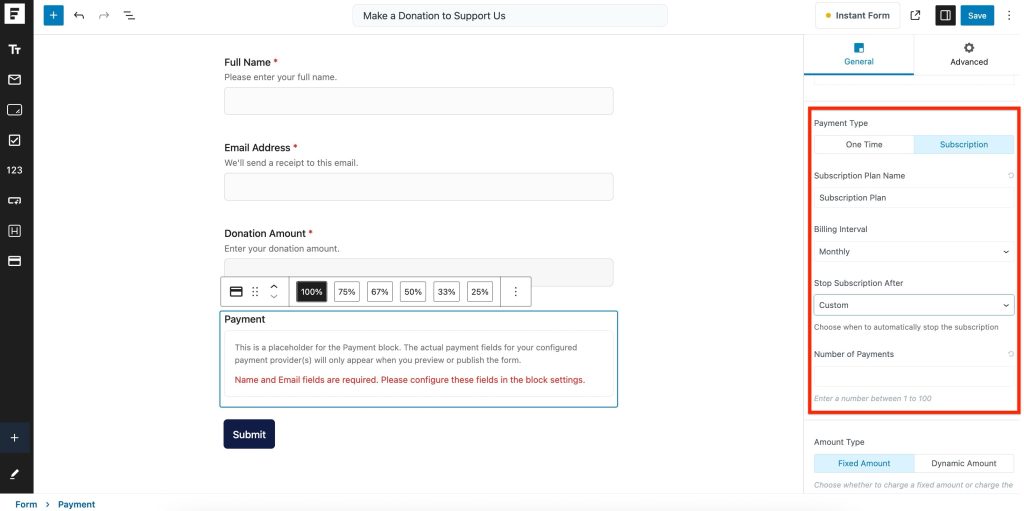
3. Subscription Payment Settings
When you choose Subscription Payment, configure the following:
- Plan Name: Enter the name of your plan (e.g., “Photography Plan”).
- Billing Interval: Choose how often the payment will be charged:
- Daily
- Weekly
- Monthly
- Quarterly
- Yearly
- Stop Subscription After: Select how many payments the subscription should stop. You can set it to a custom number or choose Never for ongoing billing.
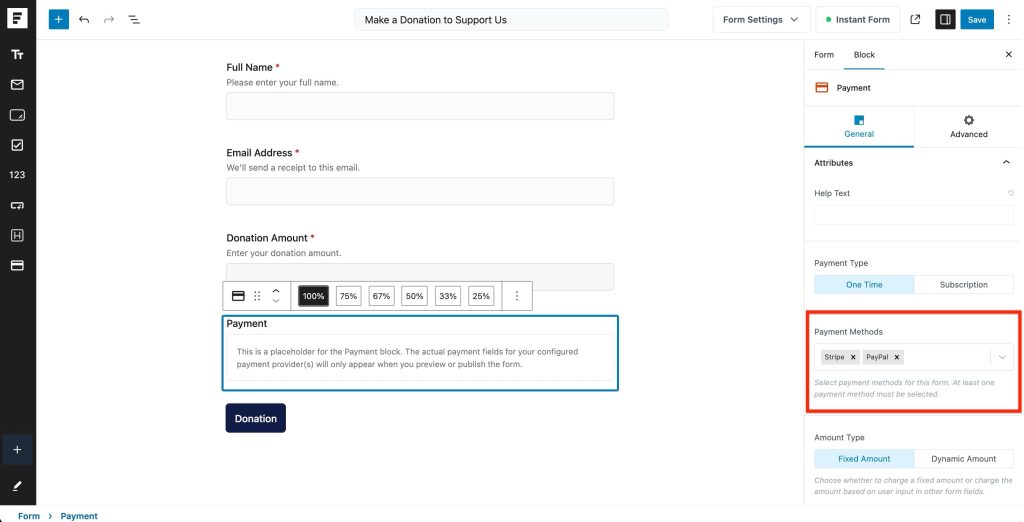
4. Payment Methods
Select payment methods for this form. Ensure at least one method is chosen.
5. Amount Type
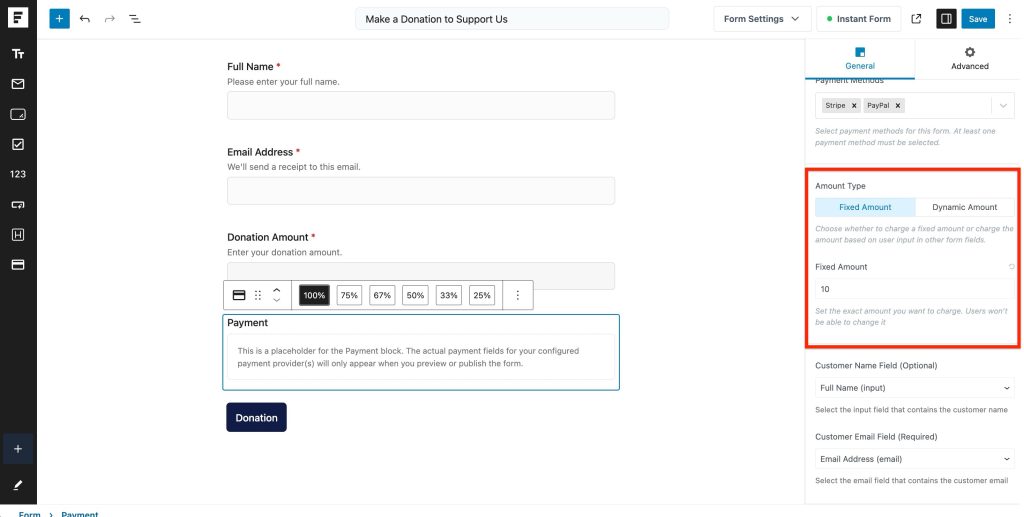
You have two options to define the payment amount:
- Fixed Amount: Enter a specific amount that will always be charged.
- Dynamic Amount: The amount is determined dynamically based on user input.
- This can be configured using dropdowns, calculations, or a custom input field within the form.
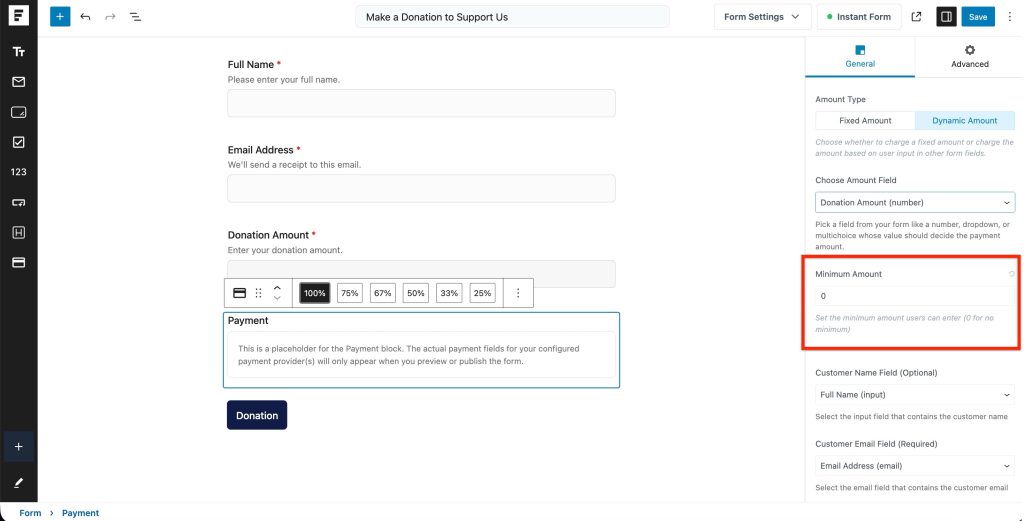
6. Minimum Amount
Set a minimum charge amount if the dynamic value isn’t available or falls below a certain limit.
7. Customer Details
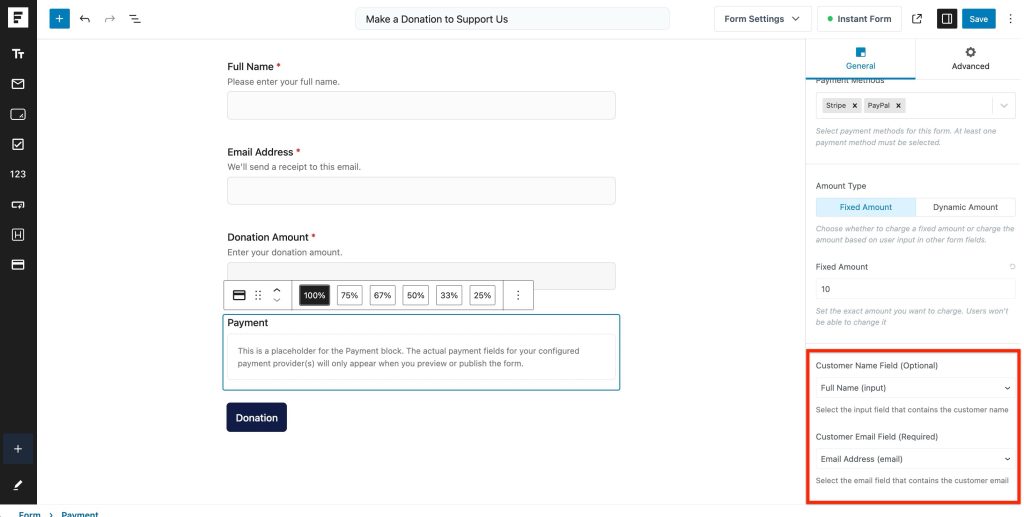
These fields are essential for processing payments:
- Customer Name: Optional for one-time payments, but required for subscriptions.
- Customer Email: This field is mandatory for both one-time and subscription payments.
Make sure your form includes these fields before publishing.
Step 6: Save and Publish the Form
Once your form and payment settings are ready:
- Click Save Form.
- Use the shortcode provided to embed the form on any page or post.
- Test the form to ensure the payment process works smoothly.
Summary
With SureForms, you can easily create both one-time and subscription-based payment forms. The flexible settings allow you to:
- Add help text for clarity
- Choose fixed or dynamic pricing
- Configure billing intervals
- Collect customer details securely
This makes it simple to collect payments directly through your WordPress site.
We don't respond to the article feedback, we use it to improve our support content.