
- Creating and Publishing a Form
- Instant Forms
- Conversational Form
- Create Multi Step Forms In WordPress
- Using Calculations in SureForms: A Step-by-Step Guide
- Calculation Formula Guide
- SureForms Login Block – Step-by-Step Guide
- SureForms Registration Block – Step-by-Step Guide
- SureForms – PDF Generation Feature
- GDPR Compliant Forms
- Adjust Form Notification Emails
- Form Confirmation
- Entries Management Feature Guide
- How to Add Query Parameters to Form Redirects
- How to Fetch Query Parameters from URL
- Set the “From Email” in SureForms
- Setting Up “Reply-To” Email Using Form Input Tags – SureForms
- Restrict Form Entries in SureForms
- Form Scheduling in SureForms
- Conditional Confirmations in SureForms
- SureForms Integration with ActiveCampaign
- SureForms Integration with AgileCRM
- SureForms Integration with Airtable
- SureForms Integration with LatePoint
- SureForms Integration with FluentCRM
- Connect SureForms To Zapier
- Automate WordPress Forms with the Custom App Builder
- SureForms Integration with Telegram
- SureForms Integration with Breeze
- SureForms Integration with Brevo
- Unable to Upload SureForms ZIP: File Unzipped On Download
- Browser Support for SureForms
- Not Getting Update Notifications
- How To Rollback to Previous SureForms Versions
- Publishing Failed: Invalid JSON Response
- Troubleshooting Email Sending In SureForms
- SureForm Submissions Marked as Spam – How to Fix
- API Request Failed – Nonce Verification Error
- Fixing the “Destination folder already exists” Error When Installing SureForms
- How to Set Up SureForms with Caching Plugins
- srfm_enable_redirect_activation
- sureforms_plugin_action_links
- srfm_quick_sidebar_allowed_blocks
- srfm_integrated_plugins
- srfm_suretriggers_integration_data_filter
- srfm_form_submit_response
- srfm_enable_gutenberg_post_types
- srfm_languages_directory
- srfm_form_template
- srfm_disable_nps_survey
How to Connect Your Stripe Account with SureForms
SureForms allows you to easily collect payments through Stripe integration. Follow the steps below to connect your Stripe account and configure your payment settings.
Connect to Stripe
Step 1: Open SureForms Settings
- In your WordPress dashboard, go to SureForms → Settings.
- Click on the Payments tab to access the payment configuration options.
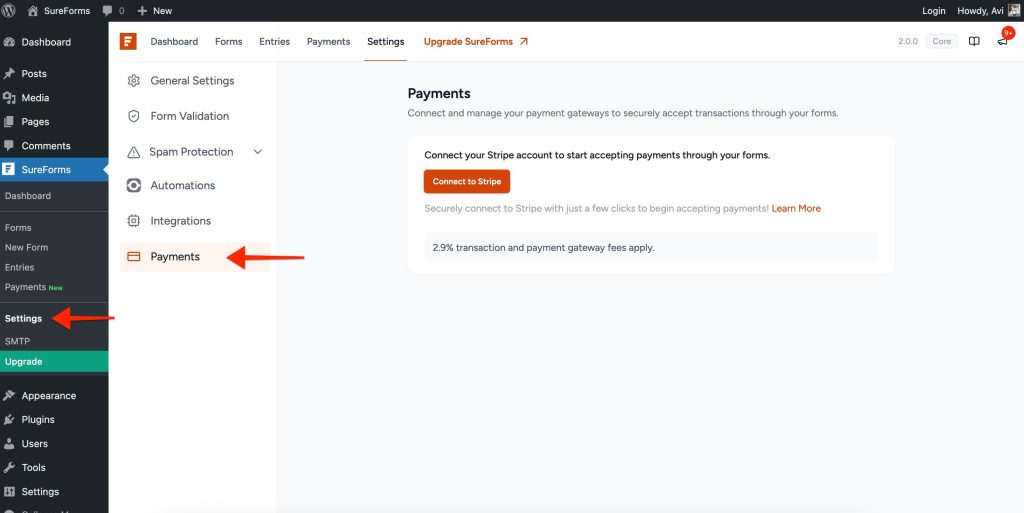
Step 2: Connect to Stripe
- Click the Connect to Stripe button.
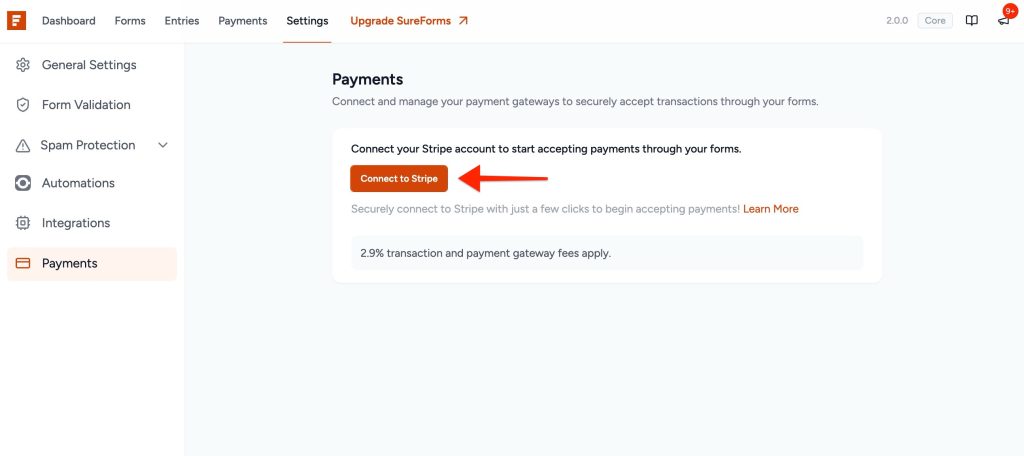
- You’ll be redirected to the Stripe login page.
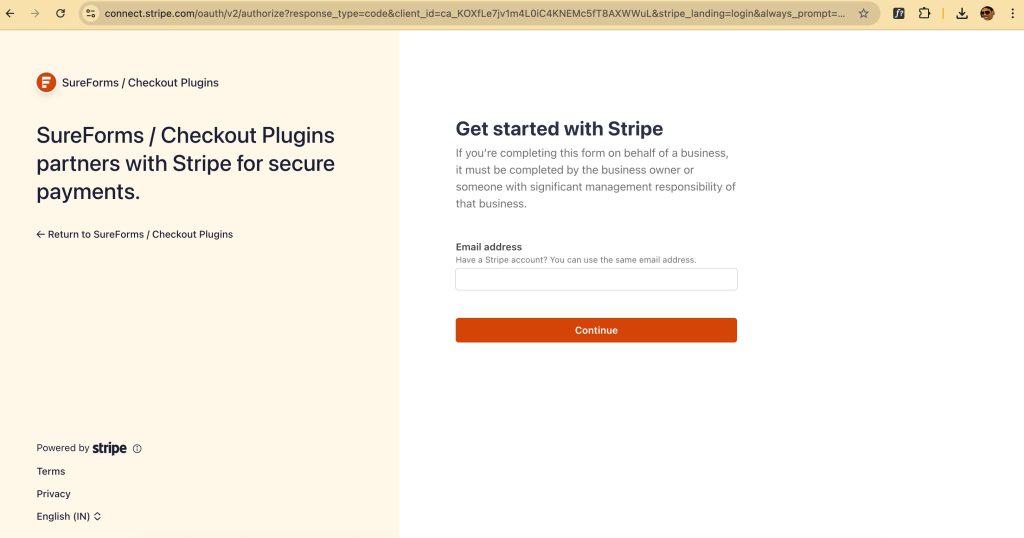
- Log in with your Stripe credentials and click Connect to authorize the connection between your Stripe account and SureForms.
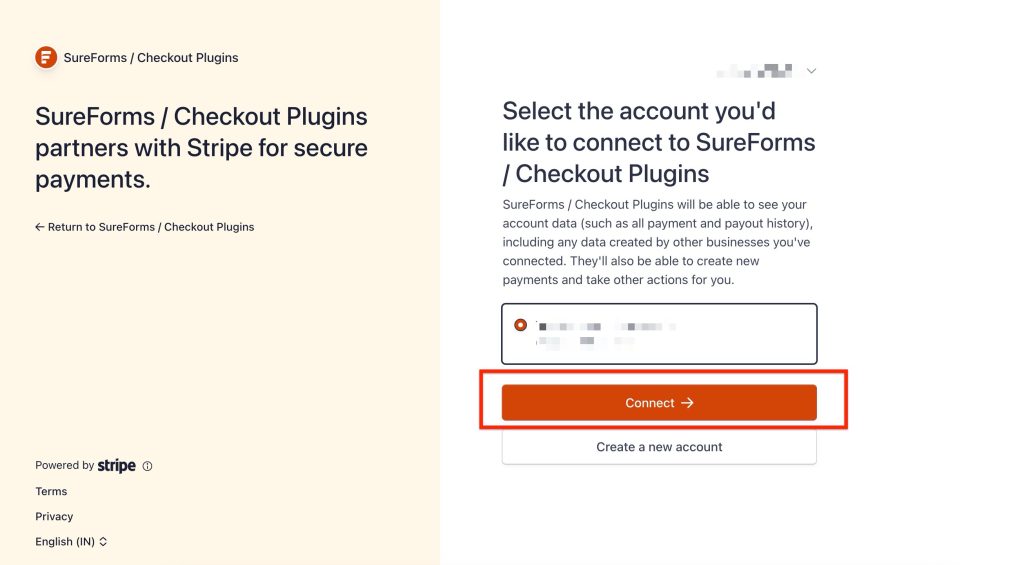
Step 3: Verify Connection
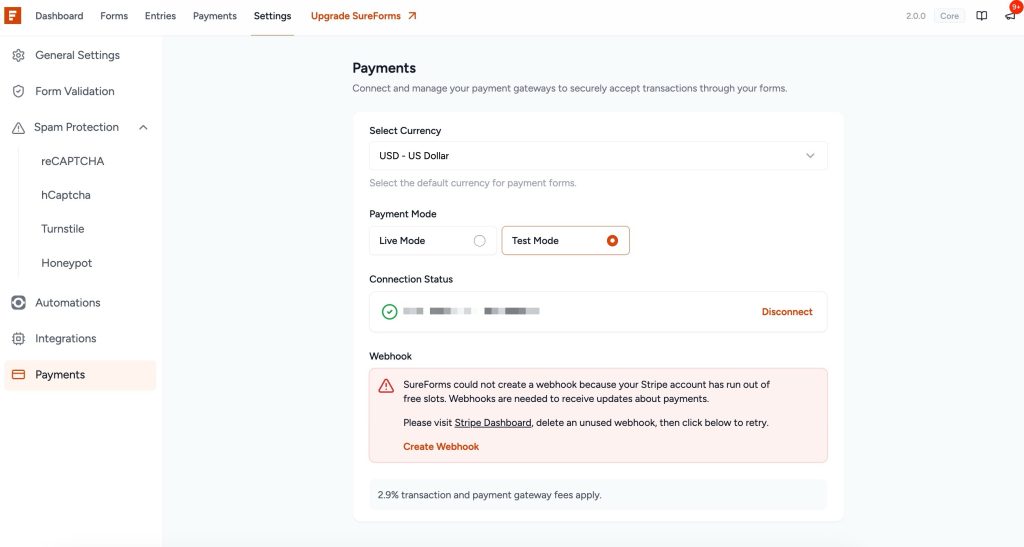
Once your Stripe account is successfully connected, you’ll see the Account Connection Status displayed on the screen. This confirms that the integration is active.
Step 4: Configure the Webhook
- Click on Create Webhook to automatically generate the webhook required for SureForms to communicate with your Stripe account.
- If your Stripe account has reached the maximum number of webhooks, you’ll receive an error message.
- In that case, remove any unused webhooks from your Stripe dashboard and try creating it again.
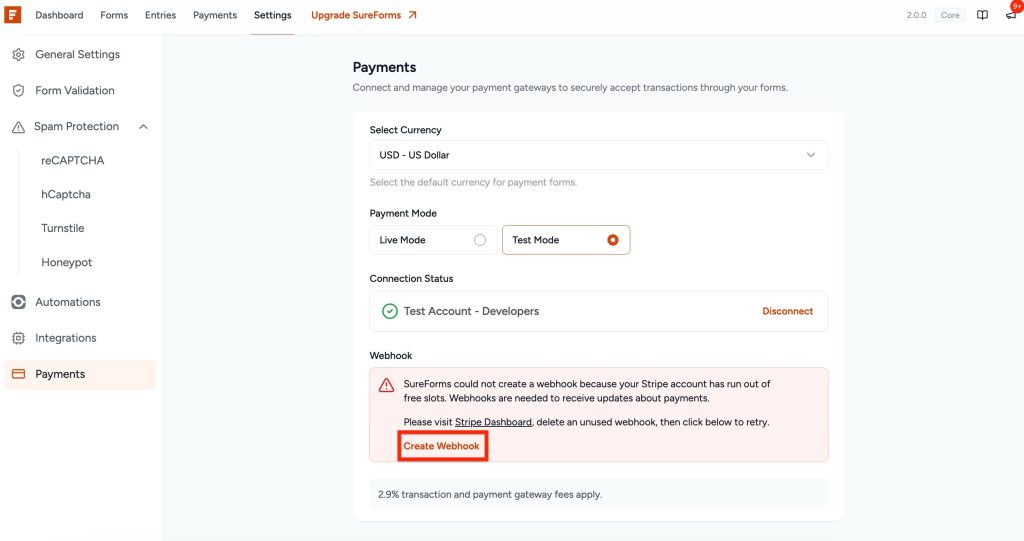
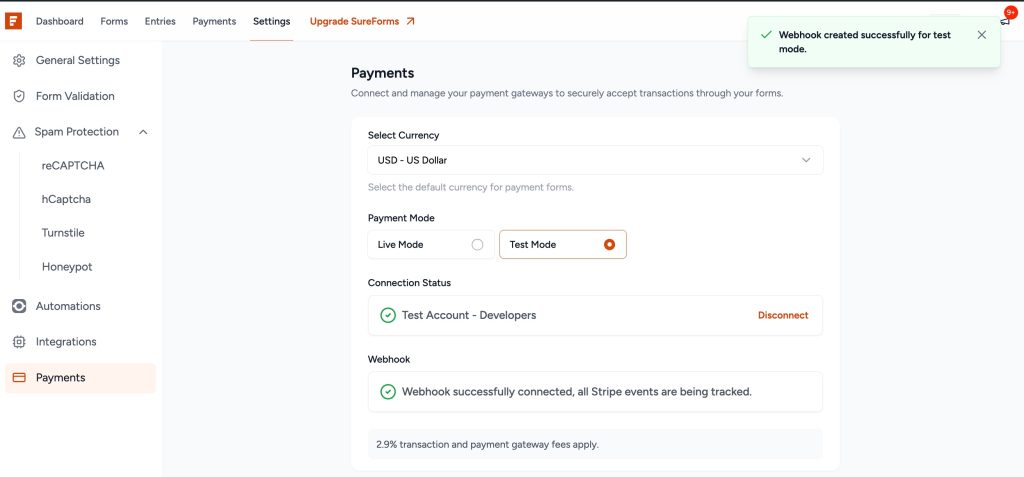
- Webhooks created.
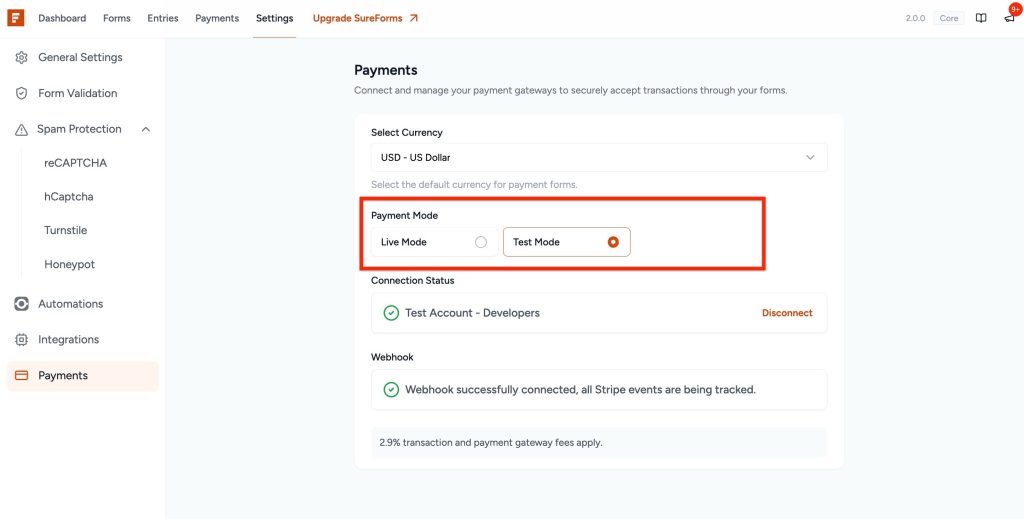
Step 5: Set Up Payment Settings
Once your webhook is successfully created, configure your payment preferences:
- Currency: Select the currency in which you want to accept payments from the dropdown list.
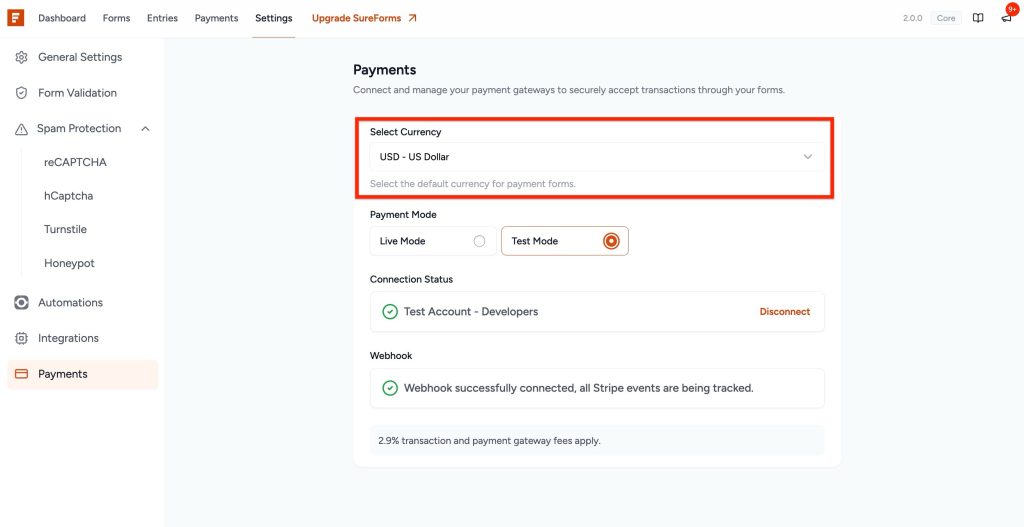
- Payment Mode: Choose between:
- Live Mode – to accept real payments.
- Test Mode – to test the payment process without real transactions.
Troubleshooting Common Issues
1. Webhook Limit Reached
If you see an error stating that the maximum limit of webhooks is reached, it means your Stripe account has too many active webhooks.
Solution:
- Log in to your Stripe dashboard.
- Go to Developers → Webhooks.
- Delete any unused webhooks.
- Return to SureForms and click Create Webhook again.
2. Authentication or Connection Failed
If Stripe fails to connect, it’s usually due to expired login credentials or browser caching.
Solution:
- Clear your browser cache and cookies.
- Log out of any existing Stripe sessions.
- Try reconnecting from SureForms → Settings → Payments.
3. Test Mode Payments Not Working
If your test transactions aren’t processing:
Solution:
- Ensure the Payment Mode is set to Test.
- Use Stripe’s test card numbers for simulation.
- Confirm your test webhook is created and active in your Stripe account.
We don't respond to the article feedback, we use it to improve our support content.