
- Creating and Publishing a Form
- Instant Forms
- Conversational Form
- Create Multi Step Forms In WordPress
- Using Calculations in SureForms: A Step-by-Step Guide
- Calculation Formula Guide
- SureForms Login Block – Step-by-Step Guide
- SureForms Registration Block – Step-by-Step Guide
- SureForms – PDF Generation Feature
- GDPR Compliant Forms
- Create WordPress Forms With Conditional Logic
- How to Create Inline Forms in SureForms
- How to Add Smart Tags as Default Values in SureForms
- Adding Custom Posts to Your WordPress Site Using SureForms
- Validate as Unique in SureForms
- How to Use Conditional Logic in SureForms
- How to Use OttoKit with Repeater Field in SureForms
- How to Duplicate a Form in SureForms
- Custom Lost Password and Reset Password Pages
- Adjust Form Notification Emails
- Form Confirmation
- Entries Management Feature Guide
- How to Add Query Parameters to Form Redirects
- How to Fetch Query Parameters from URL
- Set the “From Email” in SureForms
- Setting Up “Reply-To” Email Using Form Input Tags – SureForms
- Restrict Form Entries in SureForms
- Form Scheduling in SureForms
- Conditional Confirmations in SureForms
- SureForms Integration with ActiveCampaign
- SureForms Integration with AgileCRM
- SureForms Integration with Airtable
- SureForms Integration with LatePoint
- SureForms Integration with FluentCRM
- Connect SureForms To Zapier
- Automate WordPress Forms with the Custom App Builder
- SureForms Integration with Telegram
- SureForms Integration with Breeze
- SureForms Integration with Brevo
- Unable to Upload SureForms ZIP: File Unzipped On Download
- Browser Support for SureForms
- Not Getting Update Notifications
- How To Rollback to Previous SureForms Versions
- Publishing Failed: Invalid JSON Response
- Troubleshooting Email Sending In SureForms
- SureForm Submissions Marked as Spam – How to Fix
- API Request Failed – Nonce Verification Error
- Fixing the “Destination folder already exists” Error When Installing SureForms
- How to Set Up SureForms with Caching Plugins
- srfm_enable_redirect_activation
- sureforms_plugin_action_links
- srfm_quick_sidebar_allowed_blocks
- srfm_integrated_plugins
- srfm_suretriggers_integration_data_filter
- srfm_form_submit_response
- srfm_enable_gutenberg_post_types
- srfm_languages_directory
- srfm_form_template
- srfm_disable_nps_survey
SureForms Login Block – Step-by-Step Guide
Overview
SureForms makes it easy to create custom login forms that blend perfectly with your website’s design. The Login Block allows you to build and customize login forms that match your site’s branding, providing users with a smooth and professional experience.
This guide explains how to use the Login Block, available with the Business plan of SureForms. You can use this block to create a custom login form for your users.
How to Create a Login Form
- Go to your WordPress Dashboard
- Click on SureForms Dashboard and select Add New Form.
- Choose Build Form From Scratch.
- Add a Login Block to your new form.
Customizing the Login Block
Login Block Layout
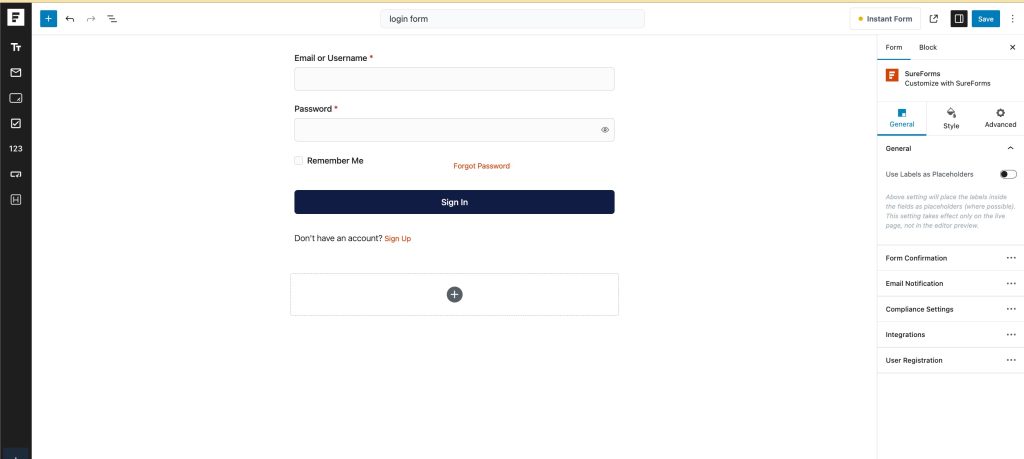
When you add the Login Block, it includes these elements by default:
- Username/Email Field
- Password Field
- Remember Me Checkbox
- Forgot Password Link
- Sign In Button
- “Don’t have an account?” text with Register link
Global Settings
You can control these options for the whole login form:
- Show/Hide Remember Me: Toggle the checkbox on or off.
- Show/Hide Forgot Password: Choose whether to display the link.
- Show/Hide Sign Up: Decide if users see the register option.
- Hide Form for Logged-In Users: Show a custom message and logout link to users who are already logged in.
Field Settings
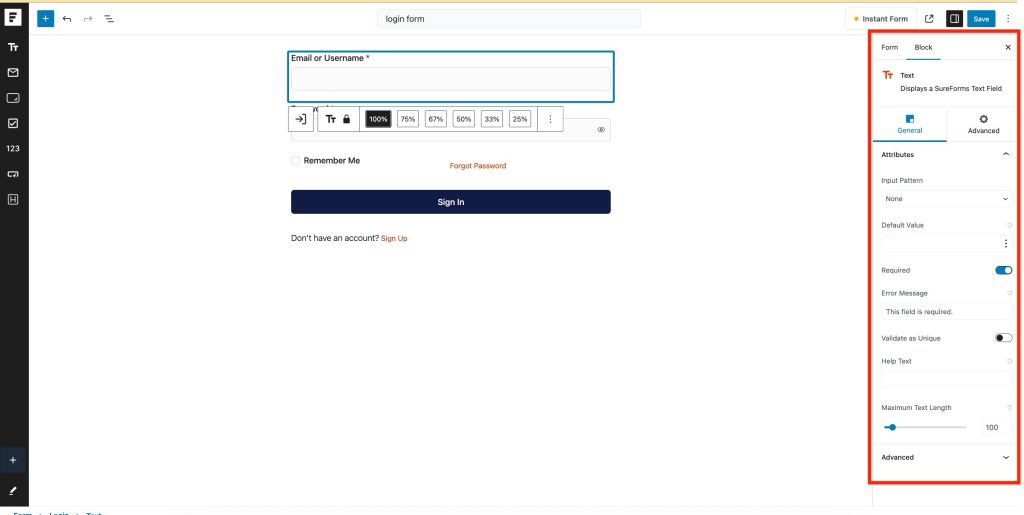
Email/Username Field
- Input Pattern:
Input patterns in SureForms allow you to control the format of the data users enter into form fields. - Default Value:
Set a predefined value for the field. You can enter it manually or use Smart Tags. - Read Only:
Make the field non-editable on the frontend. Requires a Default Value. - Required:
Ensure users must fill in this field before submitting the form. - Validate as Unique:
Validate as Unique checks if the value entered in the field has already been used. This helps prevent duplicate entries. - Error Message:
Customize error messages for invalid input. - Text Maximum Length:
Set a character limit for the input. - Help Text:
Add helpful instructions below the field.
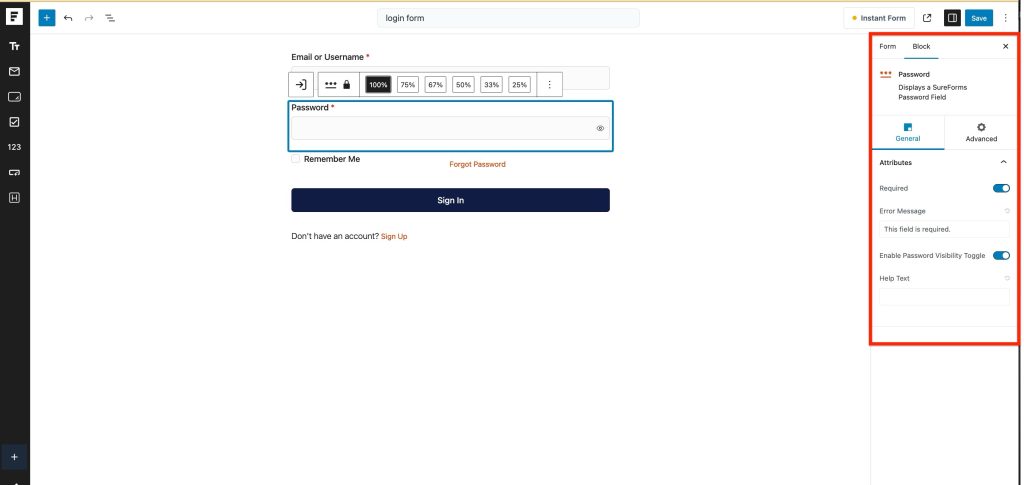
Password Field
- Required:
Make this field mandatory. - Error Message:
Customize error messages for invalid input. - Show/Hide Password:
Let users see or hide their password as they type.
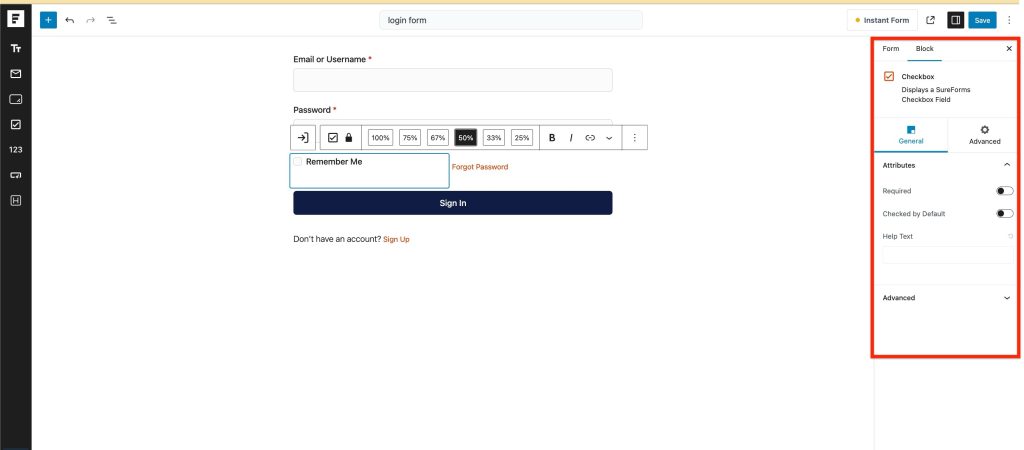
Remember Me
- Required:
Decide if checking this box is mandatory. - Help Text:
Provide extra guidance for users.
Forgot Password Link
- Prefix/Suffix:
Add text before or after the link. - URL:
Set the link destination. - Hyperlink Text:
Customize the link’s label. - Text Alignment:
Adjust where it appears. (Left, Right, Center)
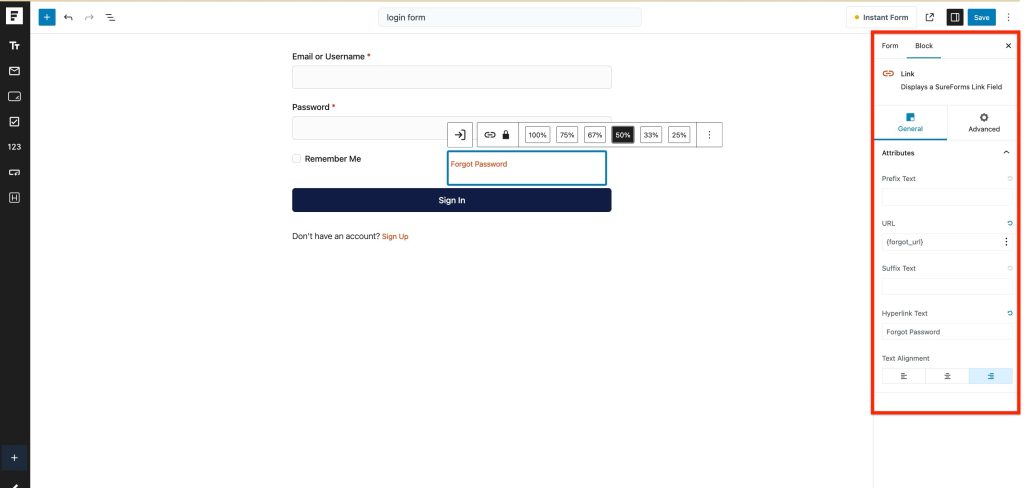
The Forgot Password link will redirect users to the default WordPress lost password page.
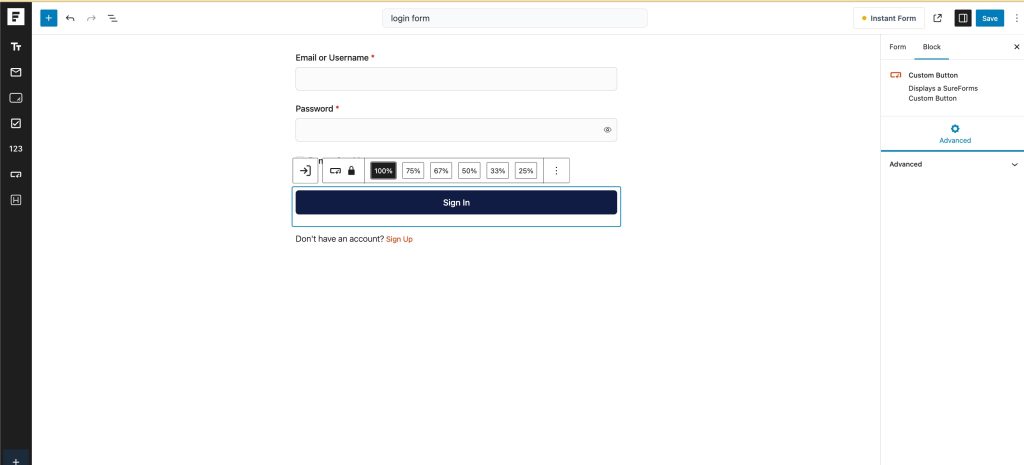
Sign In Button
A Sign In button is a clickable element that submits user login credentials to access their account.
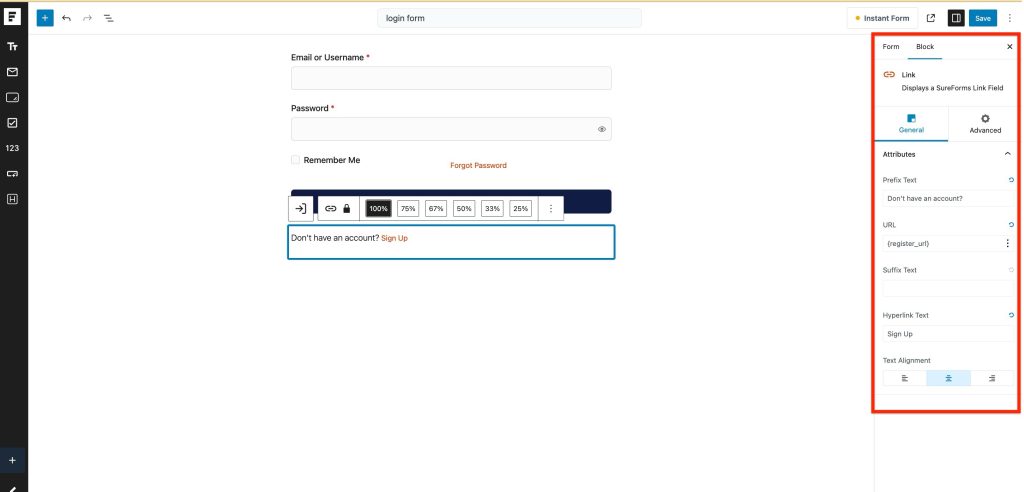
Register Section (“Don’t have an account?”)
- Prefix/Suffix:
Add text before or after the register link. - Register URL:
Set where users go to sign up. - Hyperlink Text:
Customize the register link. - Text Alignment:
Adjust the position. (Left, Right, Center)
After Login: Confirmation Options
After users log in, you can:
- Redirect them to a specific page
- Show a custom success message
Replacing the WordPress Default Login Form
To give your users a custom login experience, you can replace the default WordPress login page with your SureForms login form. Here’s how to do it:
- Create a New Login Page:
- Go to your WordPress Dashboard.
- Click on Pages > Add New to create a new page.
- Give your page a name, such as “Login.”
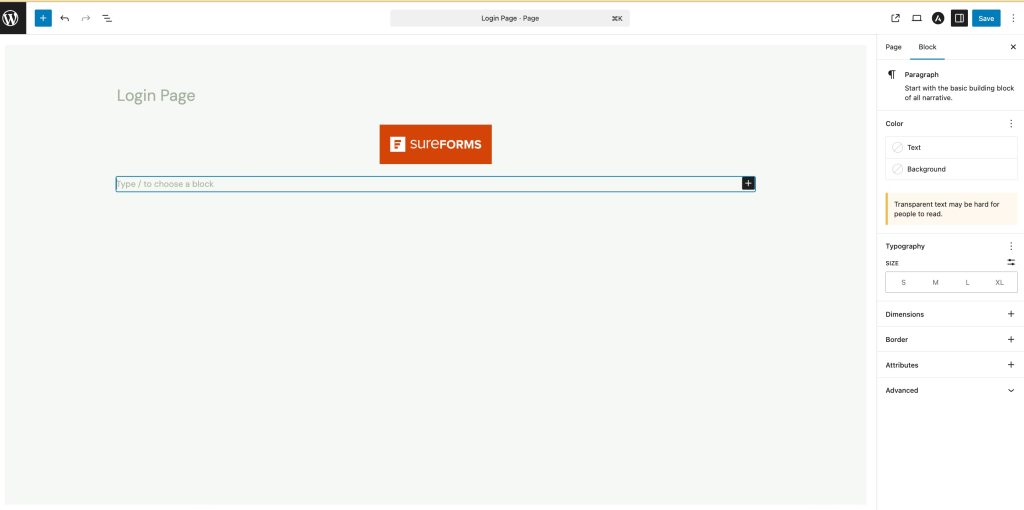
- Design Your Login Page:
- In the page editor, design your page as you like.
- Click the Add Block (+) button and search for “SureForms.”
- Add the SureForms block to your page and select your login form from the list.
- Set the Custom Login Page in SureForms Settings:
- Go to SureForms > Settings > Registration/Login.
- Turn on Enable Custom Login Page.
- Select your login page from the dropdown menu.
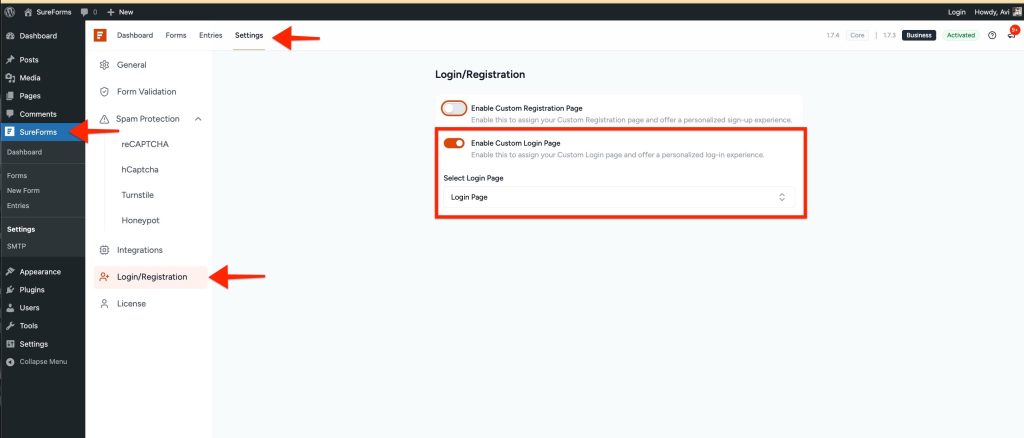
Enabling this setting will assign your new page as the login page for your site, giving users a personalized and branded login experience.
Access the Login Block and more with the SureForms Business Plan.
We don't respond to the article feedback, we use it to improve our support content.