
- Creating and Publishing a Form
- Instant Forms
- Conversational Form
- Create Multi Step Forms In WordPress
- Using Calculations in SureForms: A Step-by-Step Guide
- Calculation Formula Guide
- SureForms Login Block – Step-by-Step Guide
- SureForms Registration Block – Step-by-Step Guide
- SureForms – PDF Generation Feature
- GDPR Compliant Forms
- Adjust Form Notification Emails
- Form Confirmation
- Entries Management Feature Guide
- How to Add Query Parameters to Form Redirects
- How to Fetch Query Parameters from URL
- Set the “From Email” in SureForms
- Setting Up “Reply-To” Email Using Form Input Tags – SureForms
- Restrict Form Entries in SureForms
- Form Scheduling in SureForms
- Conditional Confirmations in SureForms
- SureForms Integration with ActiveCampaign
- SureForms Integration with AgileCRM
- SureForms Integration with Airtable
- SureForms Integration with LatePoint
- SureForms Integration with FluentCRM
- Connect SureForms To Zapier
- Automate WordPress Forms with the Custom App Builder
- SureForms Integration with Telegram
- SureForms Integration with Breeze
- SureForms Integration with Brevo
- Unable to Upload SureForms ZIP: File Unzipped On Download
- Browser Support for SureForms
- Not Getting Update Notifications
- How To Rollback to Previous SureForms Versions
- Publishing Failed: Invalid JSON Response
- Troubleshooting Email Sending In SureForms
- SureForm Submissions Marked as Spam – How to Fix
- API Request Failed – Nonce Verification Error
- Fixing the “Destination folder already exists” Error When Installing SureForms
- How to Set Up SureForms with Caching Plugins
- srfm_enable_redirect_activation
- sureforms_plugin_action_links
- srfm_quick_sidebar_allowed_blocks
- srfm_integrated_plugins
- srfm_suretriggers_integration_data_filter
- srfm_form_submit_response
- srfm_enable_gutenberg_post_types
- srfm_languages_directory
- srfm_form_template
- srfm_disable_nps_survey
Address Field
The Address field in SureForms allows users to enter complete location details, typically including street address, city, state, postal code, and country. It’s ideal for forms that require shipping, billing, or physical location information. The field is structured into multiple sub-fields for better data organization and validation.
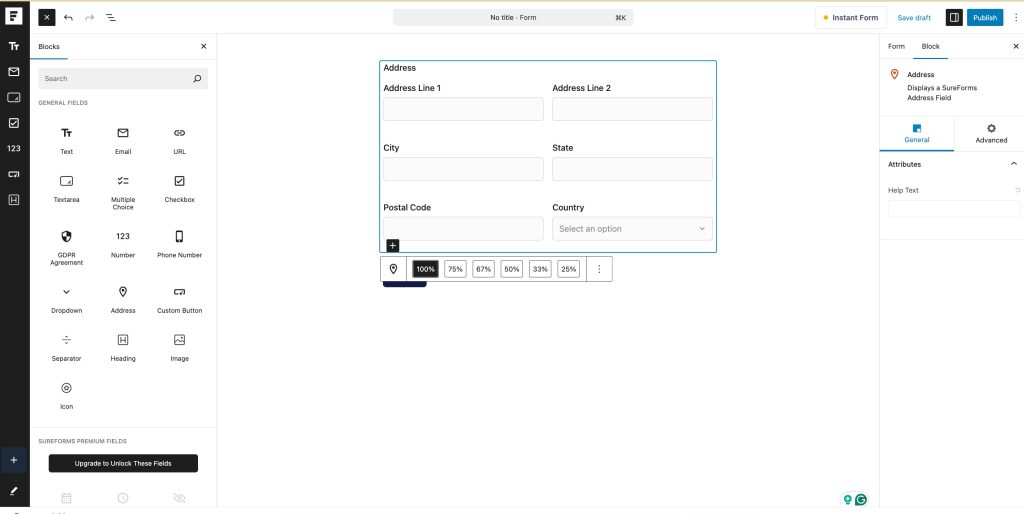
Key Attributes
- Help Text:
Help Text is a message you can show below any Address field to guide users on what to enter.
Sub-fields include
- Address Line 1 – Primary street address (e.g., house number, street name).
- Address Line 2 – Optional additional info (e.g., apartment or suite number).
- City – User’s city or locality.
- State – User’s state, province, or region.
- Postal Code – ZIP code or postal code.
- Country – A dropdown to select a country.
Key Attributes for Sub-fields
- Input Pattern:
Input patterns in SureForms allow you to control the format of the data users enter into form fields. - Default Value:
Set a predefined value for the field. You can enter it manually or use Smart Tags. - Read Only:
Make the field non-editable on the frontend. Requires a Default Value. - Required:
Ensure users must fill in this field before submitting the form. - Validate as Unique:
Validate as Unique checks if the value entered in the field has already been used. This helps prevent duplicate entries. - Text Maximum Length:
Set a character limit for the input. - Help Text:
Help Text is a message you can show below any Address Sub-fields to guide users on what to enter. - Enable Multiple Selections: Only with Country Sub-field.
The Enable Multiple Selections option allows users to select more than one country from the Country dropdown. This is useful in cases where users operate in multiple regions or need to list several applicable countries. When enabled, the dropdown changes to a multi-select format, allowing multiple entries before form submission. - Enable Search: Only with Country Sub-field.
The Enable Search option allows users to quickly find and select a country by typing into the Country dropdown. This is especially helpful when the full country list is long, improving user experience and saving time during form completion. - Add New Option: Only with Country Sub-field.
The Add New Option setting allows you to manually add a new country or custom option to the Country dropdown list.
Was this doc helpful?
What went wrong?
We don't respond to the article feedback, we use it to improve our support content.
On this page