
- Creating and Publishing a Form
- Instant Forms
- Conversational Form
- Create Multi Step Forms In WordPress
- Using Calculations in SureForms: A Step-by-Step Guide
- Calculation Formula Guide
- SureForms Login Block – Step-by-Step Guide
- SureForms Registration Block – Step-by-Step Guide
- SureForms – PDF Generation Feature
- GDPR Compliant Forms
- Adjust Form Notification Emails
- Form Confirmation
- Entries Management Feature Guide
- How to Add Query Parameters to Form Redirects
- How to Fetch Query Parameters from URL
- Set the “From Email” in SureForms
- Setting Up “Reply-To” Email Using Form Input Tags – SureForms
- Restrict Form Entries in SureForms
- Form Scheduling in SureForms
- Conditional Confirmations in SureForms
- SureForms Integration with ActiveCampaign
- SureForms Integration with AgileCRM
- SureForms Integration with Airtable
- SureForms Integration with LatePoint
- SureForms Integration with FluentCRM
- Connect SureForms To Zapier
- Automate WordPress Forms with the Custom App Builder
- SureForms Integration with Telegram
- SureForms Integration with Breeze
- SureForms Integration with Brevo
- Unable to Upload SureForms ZIP: File Unzipped On Download
- Browser Support for SureForms
- Not Getting Update Notifications
- How To Rollback to Previous SureForms Versions
- Publishing Failed: Invalid JSON Response
- Troubleshooting Email Sending In SureForms
- SureForm Submissions Marked as Spam – How to Fix
- API Request Failed – Nonce Verification Error
- Fixing the “Destination folder already exists” Error When Installing SureForms
- How to Set Up SureForms with Caching Plugins
- srfm_enable_redirect_activation
- sureforms_plugin_action_links
- srfm_quick_sidebar_allowed_blocks
- srfm_integrated_plugins
- srfm_suretriggers_integration_data_filter
- srfm_form_submit_response
- srfm_enable_gutenberg_post_types
- srfm_languages_directory
- srfm_form_template
- srfm_disable_nps_survey
Setting Up “Reply-To” Email Using Form Input Tags – SureForms
When someone submits a form on your website, SureForms can automatically send an email notification to your team or to the person who filled out the form. By default, these emails are sent from your site’s configured email address.
However, if someone tries to reply to that notification email, it will go to your default email, not the person who submitted the form.
This is where the “Reply-To” field becomes useful.
Why is the “Reply-To” Field Important?
Setting the “Reply-To” field to the user’s email address allows your team to directly respond to the person who filled out the form.
For example:
If a visitor submits a Contact Us form with their email, and your support team receives a notification, hitting “Reply” on that email will send the message directly to the visitor, only if Reply-To is correctly set.
Without setting this, replies may go to a generic admin email, causing delays or confusion.
How to Set the “Reply-To” Field Using a Form Input Tag
Follow these steps to dynamically set the “Reply-To” address based on the user’s input:
- Open Your Form
- Navigate to the SureForms dashboard and edit the form you want to configure.
- Go to General Settings
- Click on Form Settings at the top, then select General Settings.
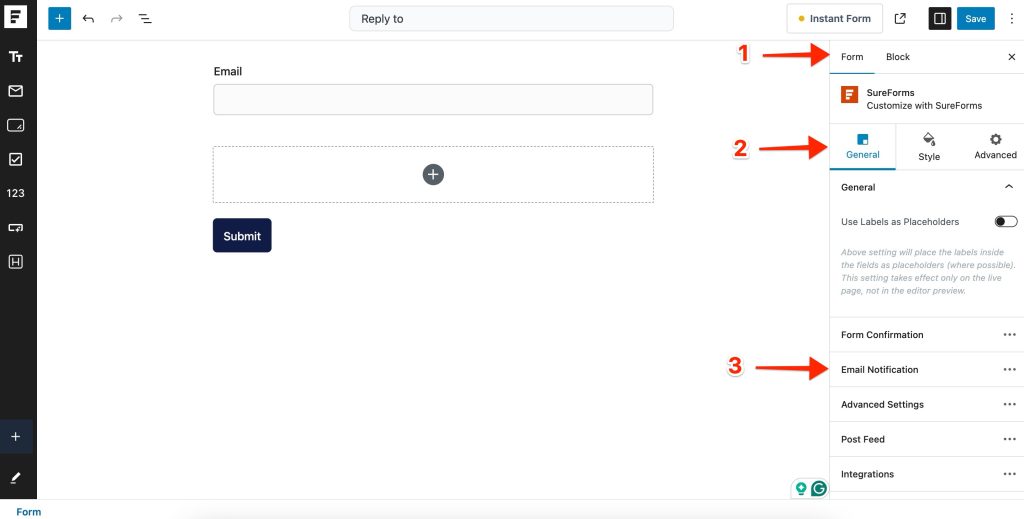
- Access Email Notifications
- Click the Email Notifications tab.
- Edit the Notification
- Find the email notification you want to edit and click the Edit (pencil) icon.
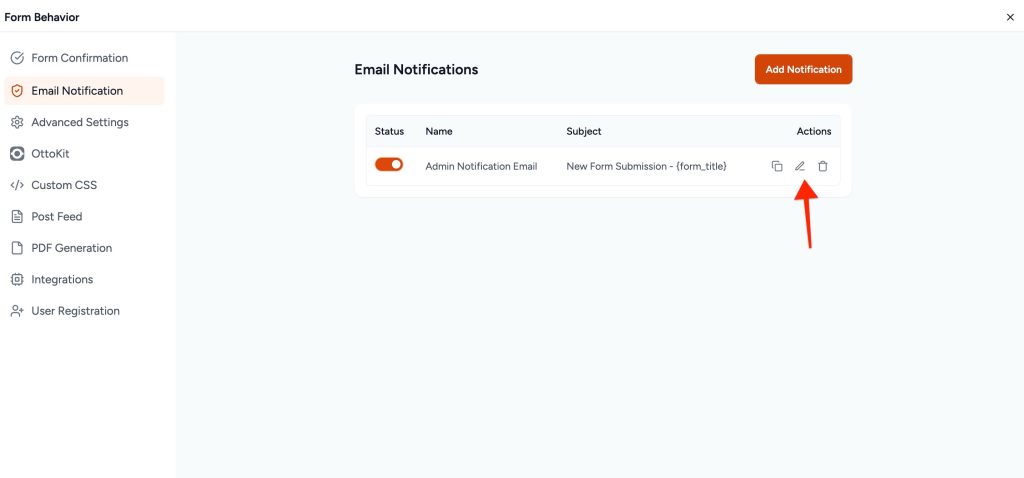
- Scroll Down to the “Reply-To” Field
- Keep scrolling until you see the Reply-To field.
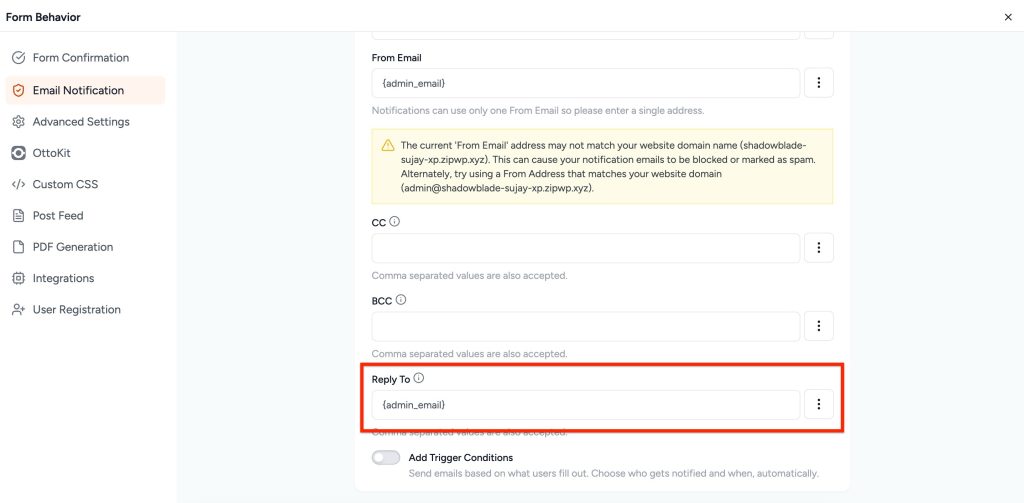
- Click the Three-Dot Menu
- On the right side of the Reply-To field, click the three vertical dots.
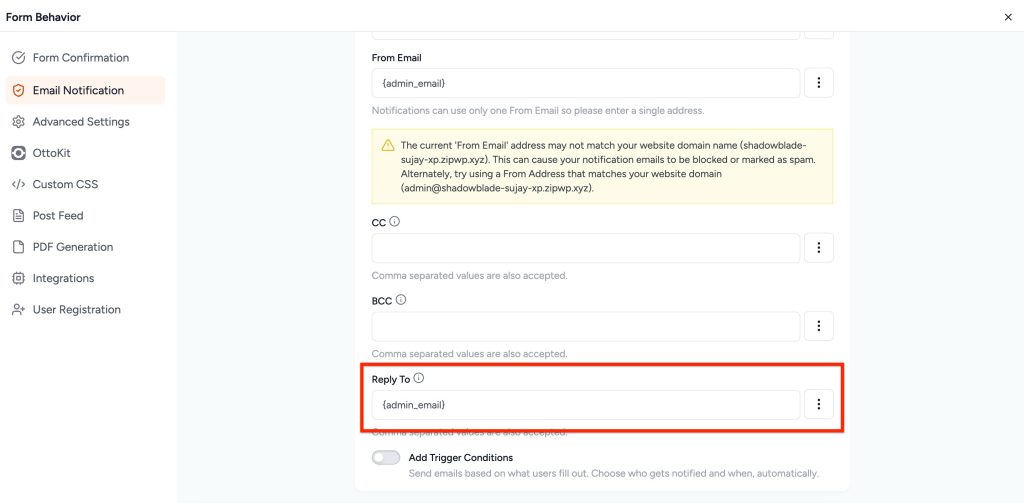
- Select “Form Input Tags”
- From the dropdown menu, choose Form Input Tags.
- Insert the Email Field Tag
- Pick the email field that the user fills in (e.g., ).
Add Name to the Reply-To Field
Adding the display name before the email improves clarity in inboxes and mail clients, making replies unmistakably addressed to the submitter. It follows the standard email header format (Display Name ), aids recognition in conversation threads, and reduces support misfires when multiple contacts share similar addresses.
Steps: Add Name to the Reply-To field
- Open Email Notifications: Edit your form, go to Form Settings → Email Notifications, then click the Edit (pencil) icon for the notification you’re using.
- Find Reply-To: Scroll to the Reply-To field and open the three‑dot menu on its right.
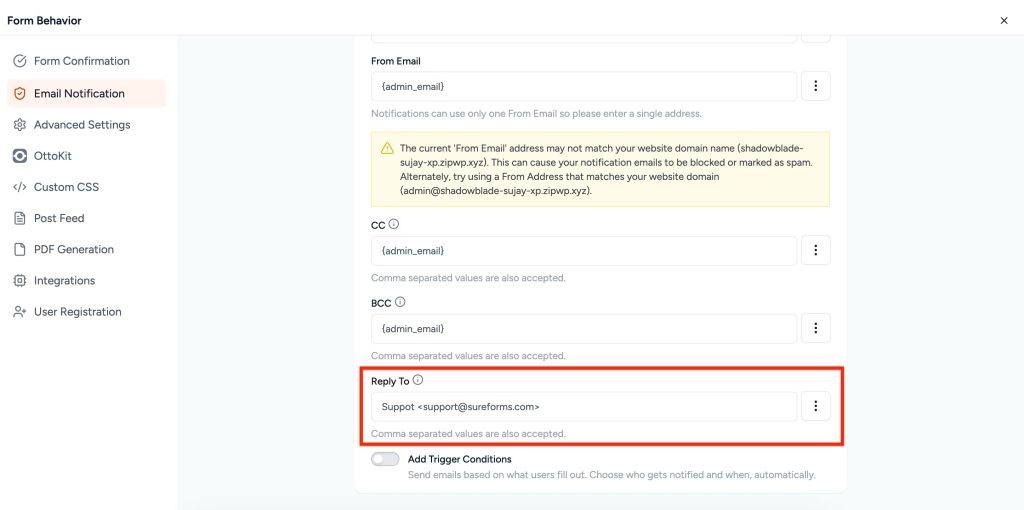
- Compose display name + email: Insert your name shortcodes followed by the email in angle brackets, e.g. Suppot <[email protected]> or Support <[email protected]>.
- Save and test: Submit the form and verify the Reply‑To header.
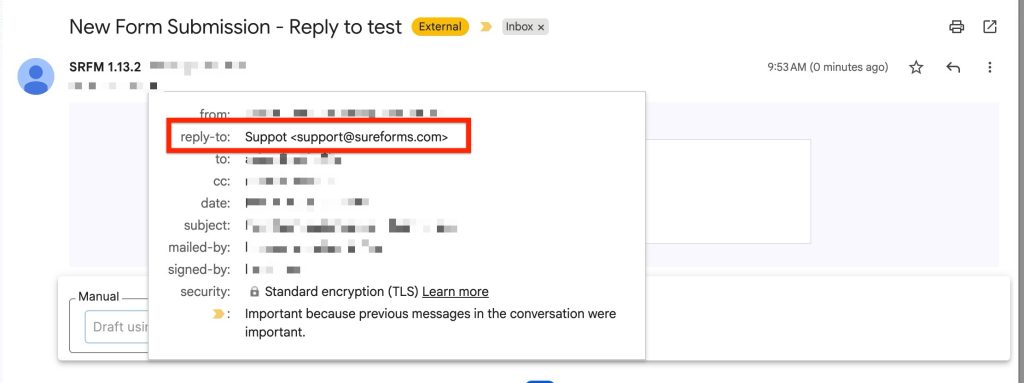
What Happens After Setup?
Once you’ve set the Reply-To field using the form’s email input tag:
- Your notification emails will still be sent to your chosen recipient (like your admin or support team).
- But now, when someone clicks “Reply” on that email, the response will automatically go to the person who submitted the form, not your default site email.
This makes communication seamless and ensures that replies reach the right person without any manual intervention.
We don't respond to the article feedback, we use it to improve our support content.