
- Creating and Publishing a Form
- Instant Forms
- Conversational Form
- Create Multi Step Forms In WordPress
- Using Calculations in SureForms: A Step-by-Step Guide
- Calculation Formula Guide
- SureForms Login Block – Step-by-Step Guide
- SureForms Registration Block – Step-by-Step Guide
- SureForms – PDF Generation Feature
- GDPR Compliant Forms
- Adjust Form Notification Emails
- Form Confirmation
- Entries Management Feature Guide
- How to Add Query Parameters to Form Redirects
- How to Fetch Query Parameters from URL
- Set the “From Email” in SureForms
- Setting Up “Reply-To” Email Using Form Input Tags – SureForms
- Restrict Form Entries in SureForms
- Form Scheduling in SureForms
- Conditional Confirmations in SureForms
- SureForms Integration with ActiveCampaign
- SureForms Integration with AgileCRM
- SureForms Integration with Airtable
- SureForms Integration with LatePoint
- SureForms Integration with FluentCRM
- Connect SureForms To Zapier
- Automate WordPress Forms with the Custom App Builder
- SureForms Integration with Telegram
- SureForms Integration with Breeze
- SureForms Integration with Brevo
- Unable to Upload SureForms ZIP: File Unzipped On Download
- Browser Support for SureForms
- Not Getting Update Notifications
- How To Rollback to Previous SureForms Versions
- Publishing Failed: Invalid JSON Response
- Troubleshooting Email Sending In SureForms
- SureForm Submissions Marked as Spam – How to Fix
- API Request Failed – Nonce Verification Error
- Fixing the “Destination folder already exists” Error When Installing SureForms
- How to Set Up SureForms with Caching Plugins
- srfm_enable_redirect_activation
- sureforms_plugin_action_links
- srfm_quick_sidebar_allowed_blocks
- srfm_integrated_plugins
- srfm_suretriggers_integration_data_filter
- srfm_form_submit_response
- srfm_enable_gutenberg_post_types
- srfm_languages_directory
- srfm_form_template
- srfm_disable_nps_survey
How to Fetch Query Parameters from URL
Parameters are codes added to the end of a URL to help you track the source, medium, and campaign of your traffic. By integrating UTM tracking with SureForms, you can analyze how users interact with your forms based on different marketing campaigns. This guide will walk you through the steps to configure and track parameters with SureForms.
Understanding UTM Parameters
Here are the five main UTM parameters you can use:
- utm_source: Identifies the traffic source (e.g., Google, Facebook, Newsletter).
- utm_medium: Identifies the medium (e.g., organic, email, CPC).
- utm_campaign: Tracks a specific campaign (e.g., Black_Friday_Sale).
- utm_content: Differentiates variations of the same link (e.g., banner_ads, CTA_buttons).
- utm_term: Tracks keywords used in paid search campaigns.
Adding UTM Parameters to Your URLs
- Use a UTM builder tool to generate URLs with appropriate UTM parameters.
- For example, a URL could look like this:
https://example.com/form?utm_source=google&utm_medium=test&utm_campaign=winter_sale - Ensure the URLs with UTM parameters are shared in your marketing campaigns.
Configuring SureForms to Track Parameters
SureForms automatically supports GET parameters, including UTM parameters. Here’s how you can ensure they are tracked:
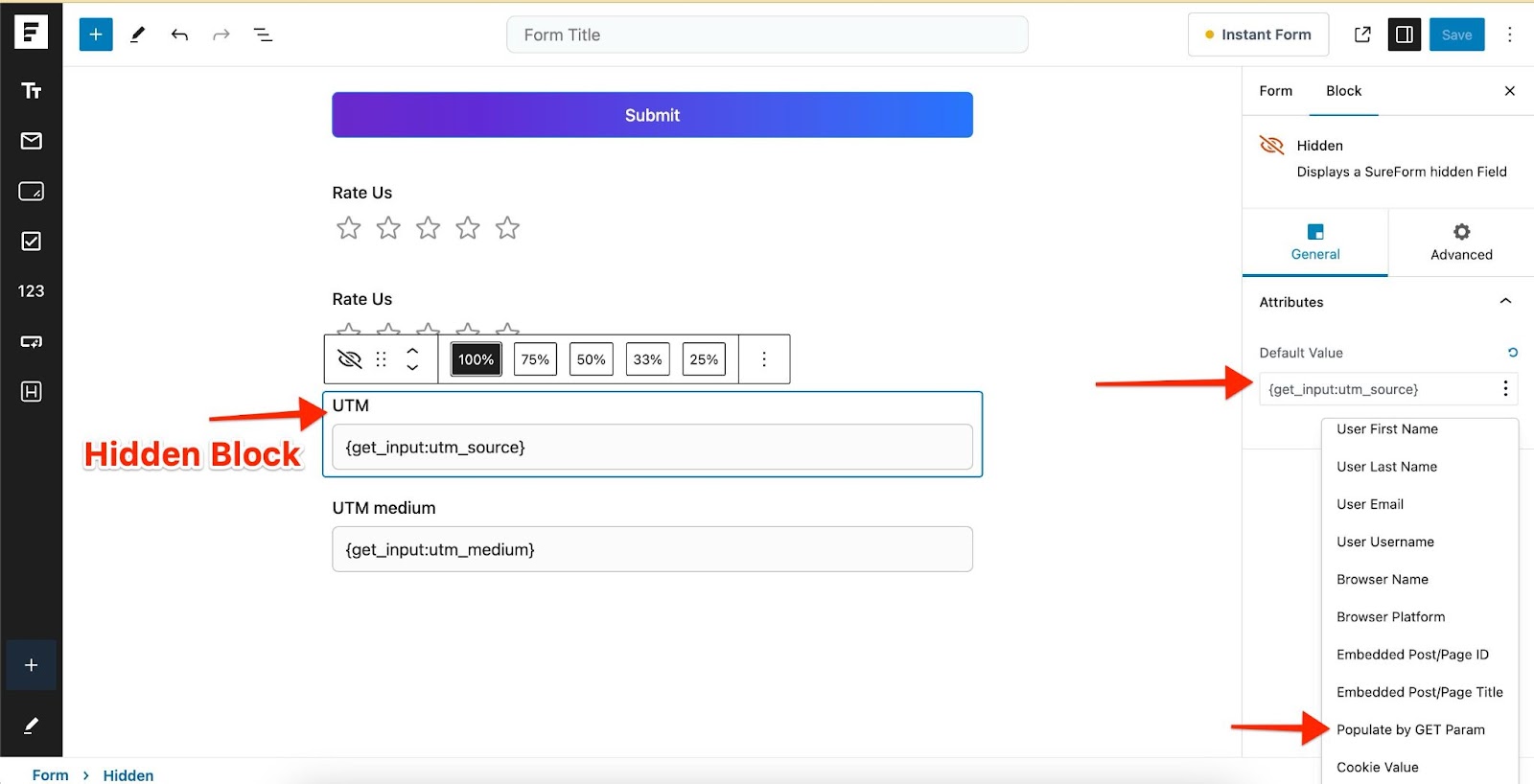
- Set Up Hidden Fields for Parameters:
- Edit your form and add Hidden block for each UTM parameter you want to track (e.g., utm_source, utm_medium, etc.).
- Use Default Value settings to map these fields to URL parameters.
- For example, map the utm_source field to the utm_source parameter in the URL.
- Save and Test Your Form:
- Save the changes to your form.
- Test the form by submitting it using a URL with UTM parameters to verify that the data is captured.
Viewing Captured UTM Data
Once your form is set up:
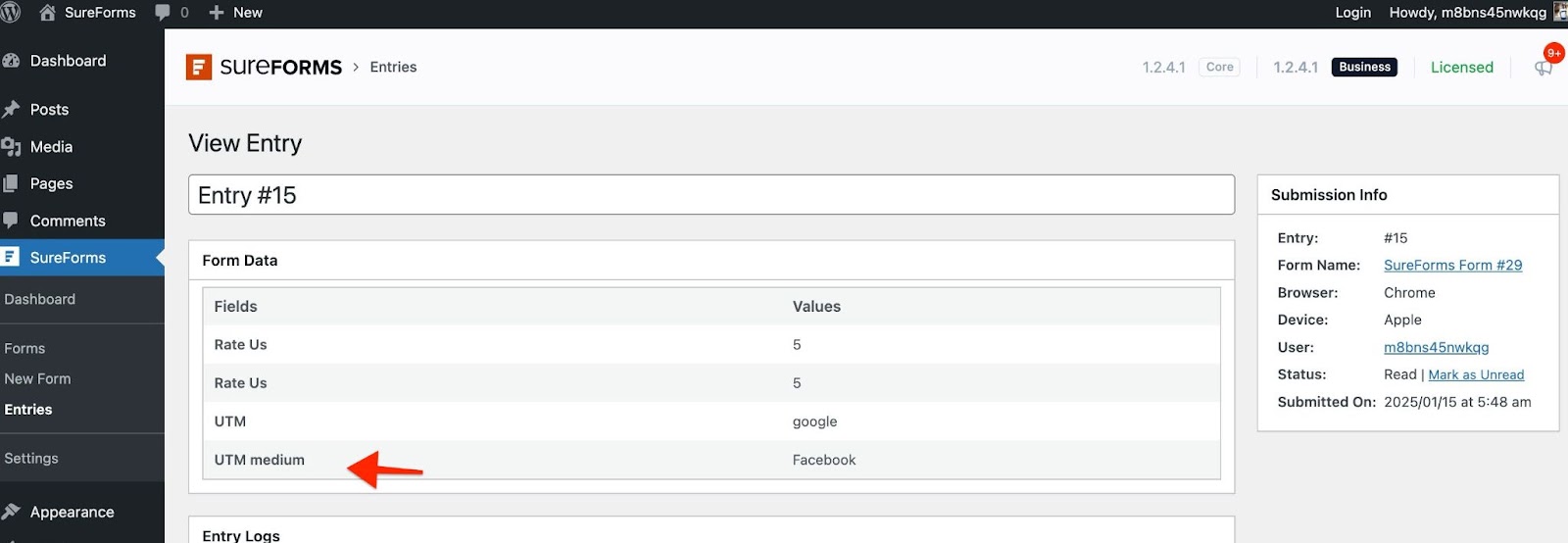
- Go to the SureForms dashboard – Entries
- Review the UTM data captured in the hidden fields.
- Each submission will display the UTM values associated with the user’s session.
Best Practices for UTM Tracking
- Use consistent and descriptive naming conventions for UTM parameters.
- Avoid using UTM parameters for internal links to prevent data misrepresentation.
- Regularly monitor and analyze the UTM data in SureForms and your analytics tool (e.g., Google Analytics).
Conclusion
By integrating parameter tracking into SureForms, you gain valuable insights into your marketing campaign’s effectiveness. This setup ensures you can measure traffic sources and optimize your strategies for better results.
For additional help or questions, refer to the SureForms documentation or contact support.
We don't respond to the article feedback, we use it to improve our support content.