
- Creating and Publishing a Form
- Instant Forms
- Conversational Form
- Create Multi Step Forms In WordPress
- Using Calculations in SureForms: A Step-by-Step Guide
- Calculation Formula Guide
- SureForms Login Block – Step-by-Step Guide
- SureForms Registration Block – Step-by-Step Guide
- SureForms – PDF Generation Feature
- GDPR Compliant Forms
- Adjust Form Notification Emails
- Form Confirmation
- Entries Management Feature Guide
- How to Add Query Parameters to Form Redirects
- How to Fetch Query Parameters from URL
- Set the “From Email” in SureForms
- Setting Up “Reply-To” Email Using Form Input Tags – SureForms
- Restrict Form Entries in SureForms
- Form Scheduling in SureForms
- Conditional Confirmations in SureForms
- SureForms Integration with ActiveCampaign
- SureForms Integration with AgileCRM
- SureForms Integration with Airtable
- SureForms Integration with LatePoint
- SureForms Integration with FluentCRM
- Connect SureForms To Zapier
- Automate WordPress Forms with the Custom App Builder
- SureForms Integration with Telegram
- SureForms Integration with Breeze
- SureForms Integration with Brevo
- Unable to Upload SureForms ZIP: File Unzipped On Download
- Browser Support for SureForms
- Not Getting Update Notifications
- How To Rollback to Previous SureForms Versions
- Publishing Failed: Invalid JSON Response
- Troubleshooting Email Sending In SureForms
- SureForm Submissions Marked as Spam – How to Fix
- API Request Failed – Nonce Verification Error
- Fixing the “Destination folder already exists” Error When Installing SureForms
- How to Set Up SureForms with Caching Plugins
- srfm_enable_redirect_activation
- sureforms_plugin_action_links
- srfm_quick_sidebar_allowed_blocks
- srfm_integrated_plugins
- srfm_suretriggers_integration_data_filter
- srfm_form_submit_response
- srfm_enable_gutenberg_post_types
- srfm_languages_directory
- srfm_form_template
- srfm_disable_nps_survey
How To Create A WordPress Form With AI
With SureForms, you can create a form quickly using AI. Instead of building a form from scratch, you just tell the AI what you need by typing a simple description.
The AI then builds your form based on what you said. Here are some of the things AI does:
- Adds relevant fields and organizes the layout using best practices for user experience.
- Translates the entire form, including labels and options, into different languages with a prompt.
- Offers voice note input for hands-free form creation by describing your form out loud.
- Builds complex forms while maintaining aesthetics, so you focus on functionality instead of design
In this guide, you’ll learn how to easily create a WordPress form using AI in SureForms.
Why Use SureForms AI
Creating forms manually can be time-consuming and challenging, especially when balancing user experience, design, and functionality. SureForms uses AI to simplify this process by:
- Automatically generating fields and layouts.
- Offering quick customization with simple prompts.
- Supporting multiple languages and hands-free input.
- Making complex forms look professional without detailed design work.
For example, if you describe a job application form, the AI will generate a ready-to-use form with fields for name, email, resume upload, and experience level, all set up automatically.
After the AI generates the form, you can still customize and edit it further to suit your needs.
Creating AI Forms In WordPress
To move forward, ensure you have installed SureForms on your website. Then, follow these steps:
- Go to your SureForms dashboard and click “New Form”.
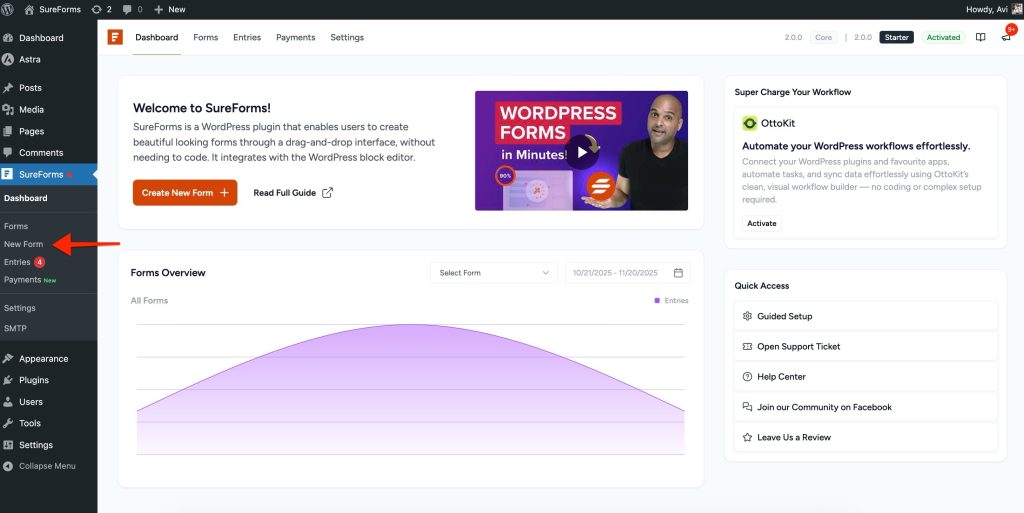
- By default, it will navigate to the AI screen.
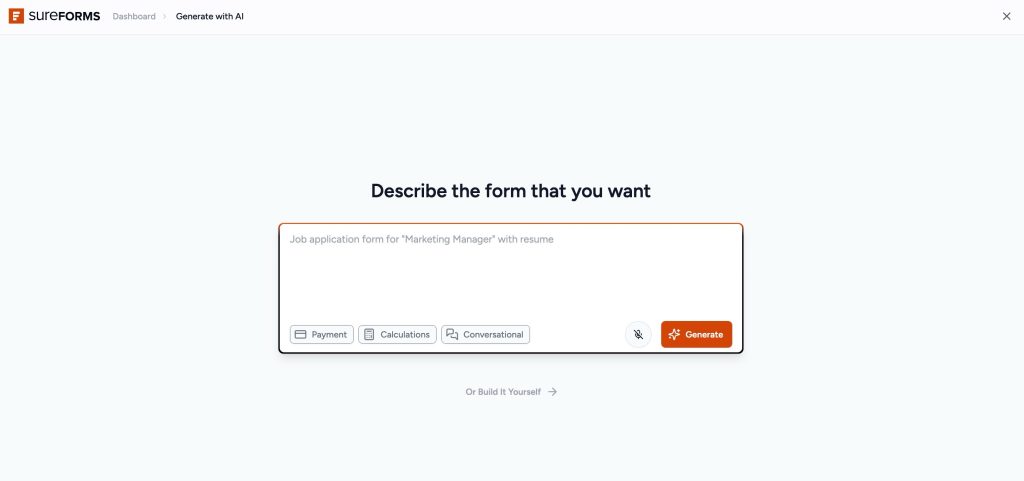
- Here, clearly describe the form you want to create.
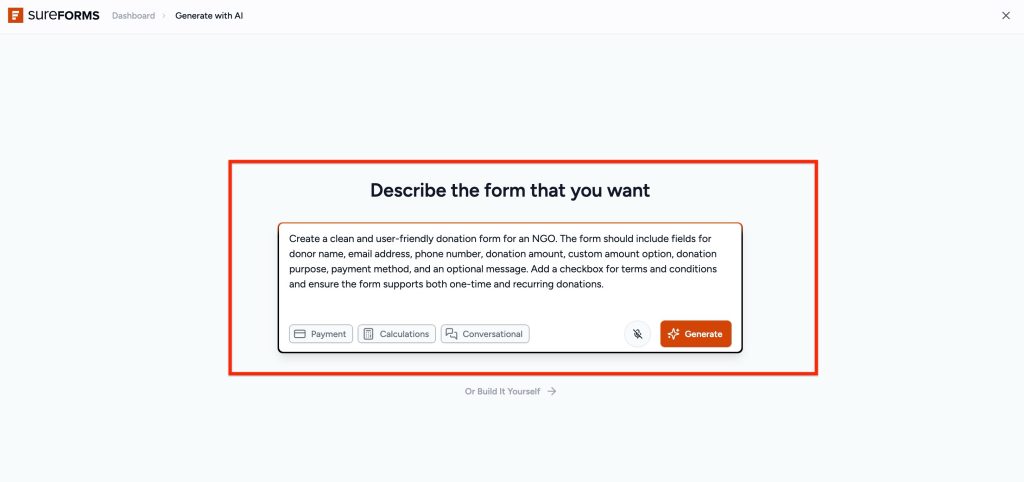
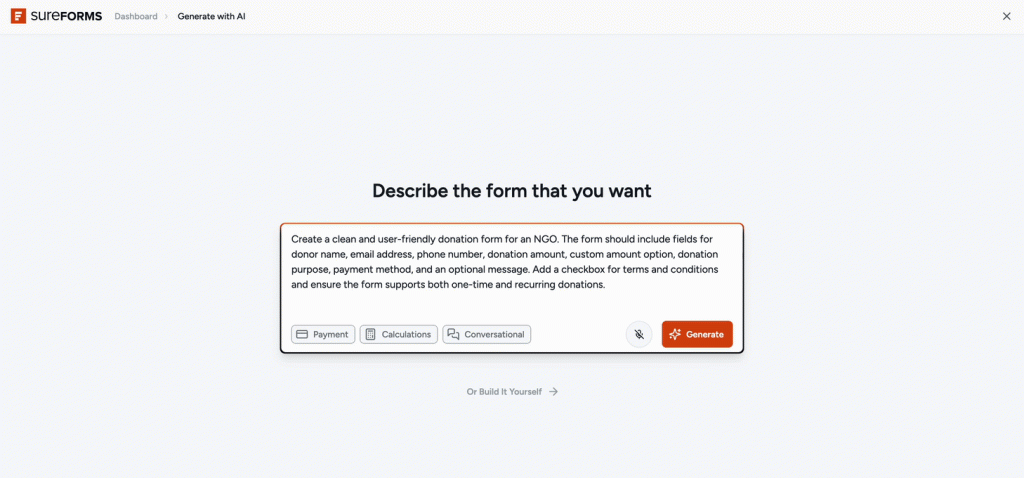
Once done, click the “Generate Form” button to finish creating your AI form.
Using AI Voice Input for Form Creation
If you don’t want to type, you can use the “Voice Input” option to record your AI prompt. This allows you to describe your form out loud for hands-free creation. Here’s how:
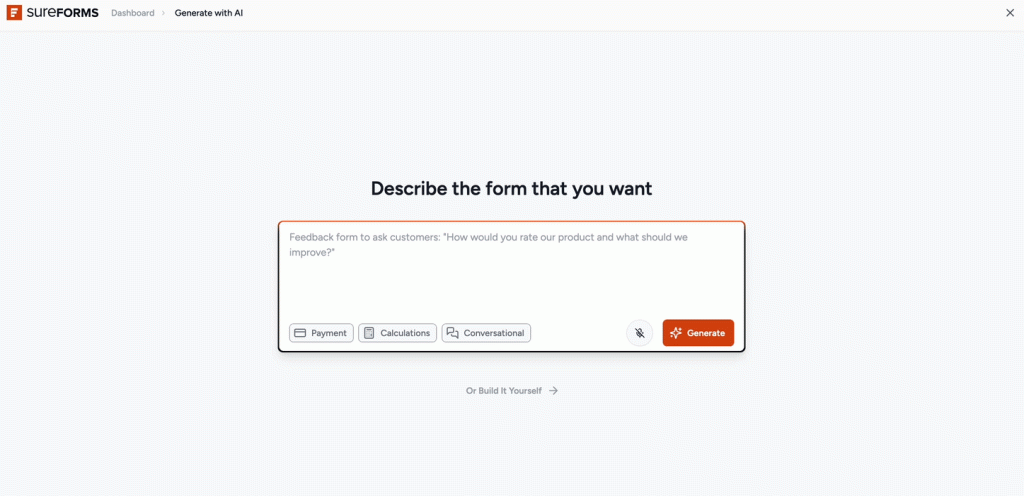
Once you’re done, click the “Listening” option in green to stop recording your AI voice prompt.
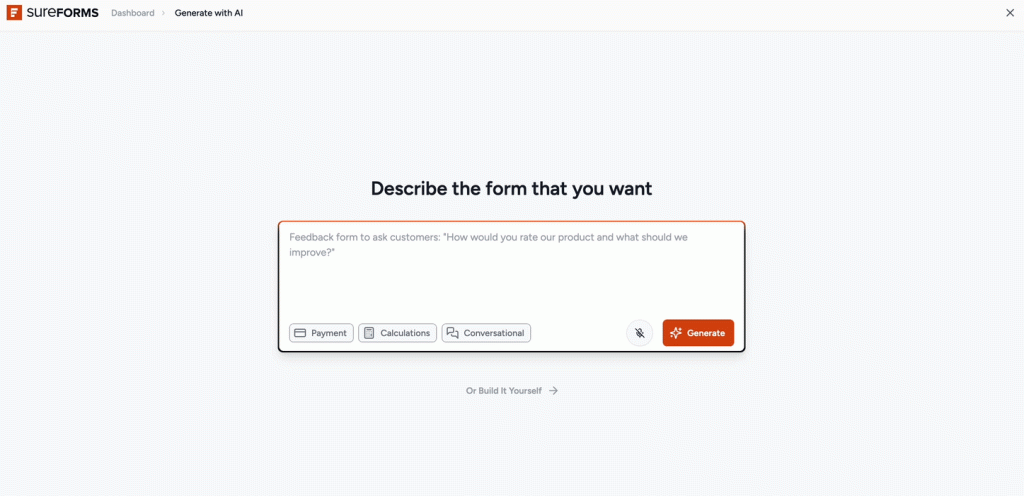
In both Chrome and Safari, a pop-up will appear asking for permission to use your microphone. Make sure to click “Allow” so the AI can listen to your voice prompt.
Using AI to Translate Your Form into Different Languages
If you want to generate your form in a different language, you can tell the AI to translate it. This includes translating all labels, descriptions, and field options. For example, you can use a prompt like:
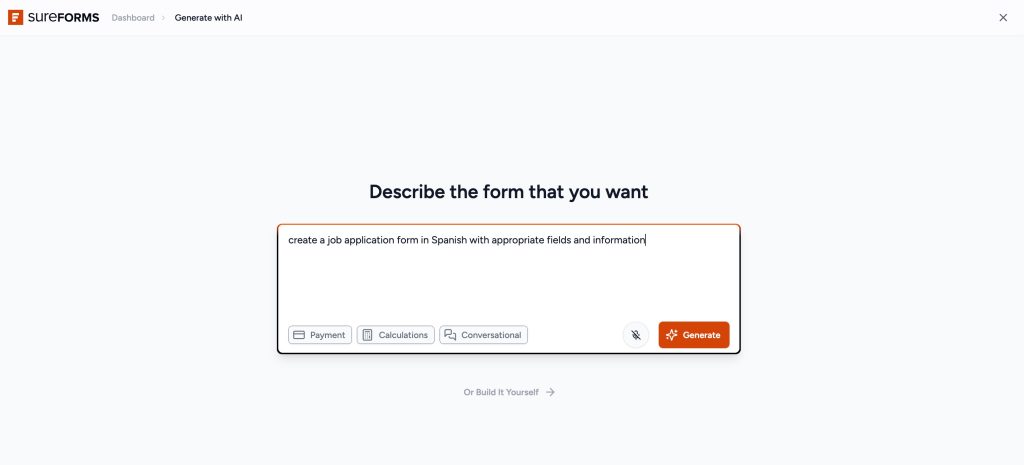
The AI will then generate the entire form in the specified language.
After you click the “Generate Form” button, SureForms will create and open a new form in draft mode. You can publish it whenever you want.
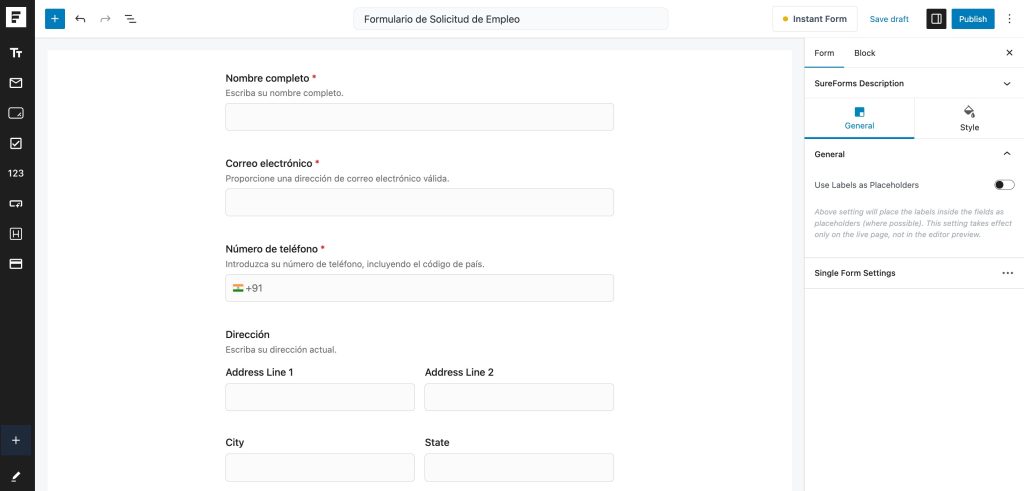
You can further customize and publish your form whenever you need.
Similarly, you can create AI forms for different use cases. The SureForms AI will generate and style fields that match your requirements without you needing to create and customize each field manually.
Unlock More Power with Smart Features
In addition to the AI-powered form builder, SureForms also offers a suite of intelligent features designed to enhance form creation and improve user experience. These include:
- Conversational Forms: Transform traditional forms into engaging, interactive conversations that guide users step by step. This boosts completion rates and creates a more personalized interaction.
- Smart Calculations: Easily create dynamic forms that calculate values in real time, perfect for quote requests, pricing estimators, or any data-driven input.
- Payment Forms: Accept payments smoothly without any technical setup. You can collect one-time payments, subscriptions, donations, or custom amounts directly through your forms. It helps you streamline your checkout process and makes it easier for users to complete their payments.
Together, these features empower you to build intuitive, high-converting forms in just a few clicks, no coding required. Whether you’re collecting leads, conducting surveys, or accepting payments, SureForms makes it faster and smarter.
If you have any further questions, feel free to reach out to us. We’re always here to help.
We don't respond to the article feedback, we use it to improve our support content.